
Datennutzung
So vermeiden Sie eine hohe Datennutzung
Eine Einstellung verhindert, dass Ihr Smartphone im Hintergrund Daten verbraucht. Das dauert nur 30 Sekunden, und Sie können sie jederzeit wieder deaktivieren.
- Ihre Verbindung wird nicht verlangsamt: Updates und Hintergrunddatenverkehr werden pausiert.
- Bei einem unbegrenzten Tarif bleiben Sie länger mit voller Geschwindigkeit verbunden.
Jetzt aktivieren
Wählen Sie Ihr Telefon aus. Die Einstellung hat auf jedem System einen anderen Namen, erfüllt aber dieselbe Funktion.
iPhone: Datensparmodus
- Einstellungen
- Mobiler Dienst
- Ihre eSIM
- Datenmodus
-
eSIM in den Einstellungen öffnen
Öffnen Sie in den Einstellungen „Mobiler Dienst“ („Mobilfunk“ auf einigen iPhones) und tippen Sie auf die Zeile mit Ihrer Quibity eSIM.
-
Datenmodus öffnen
Der Eintrag bestimmt, wie frei die Leitung Daten nutzen kann.
-
Datensparmodus auswählen
Der blaue Haken wird daneben angezeigt. Das ist alles: Es gibt nichts zu speichern.
-
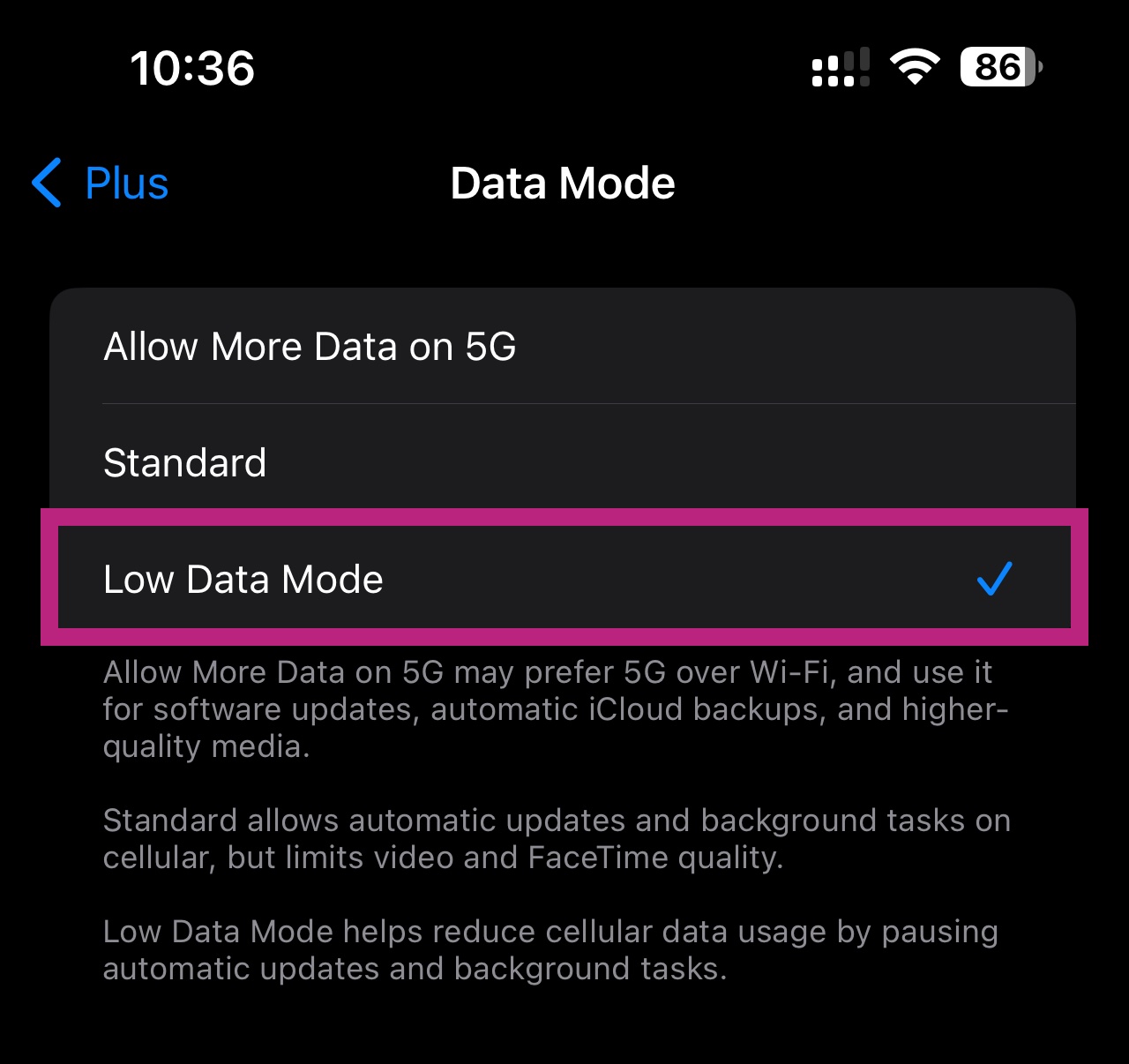
Einstellungen, Mobilfunkdienst, Ihre eSIM, Datenmodus
Android: Datensparmodus
- Einstellungen
- Verbindungen
- Datennutzung
- Datensparmodus
-
Datenverbrauch öffnen
Öffnen Sie in den Einstellungen Verbindungen (auf einem Pixel „Netzwerk & Internet“) und anschließend Datennutzung.
-
Datensparen antippen
Schalten Sie sie anschließend ein. Ihre Apps verbrauchen keine Daten mehr, wenn Sie sie nicht verwenden.
-
Prüfen Sie, dass Datenroaming aktiviert bleibt
Eine Quibity eSIM funktioniert immer im Roaming. Der Datensparmodus ändert diese Einstellung nicht, aber es lohnt sich, ihn zu überprüfen.
Menünamen unterscheiden sich je nach Marke leicht. Die hier gezeigten Bildschirme stammen von einem Samsung-Handy.
-
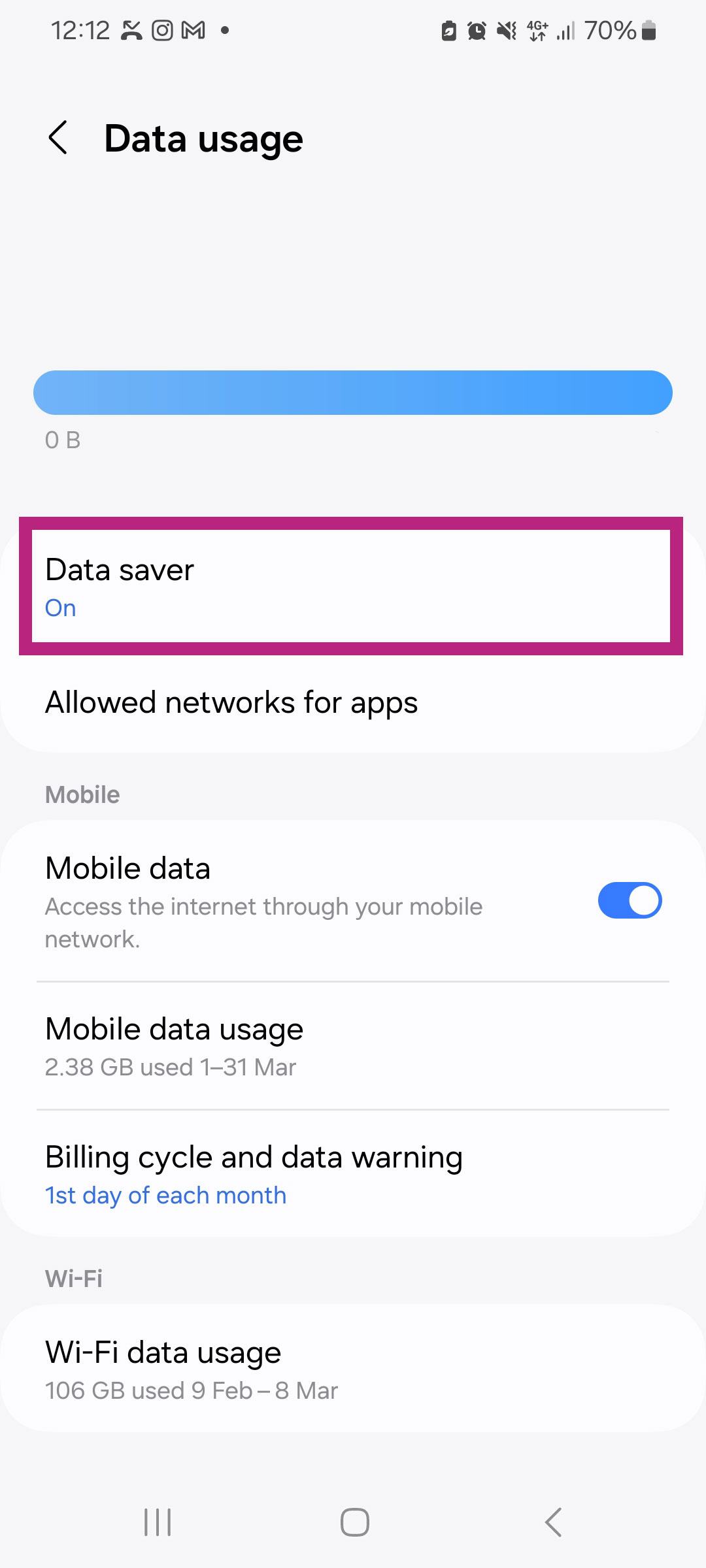
Einstellungen, Verbindungen, Datenverbrauch -
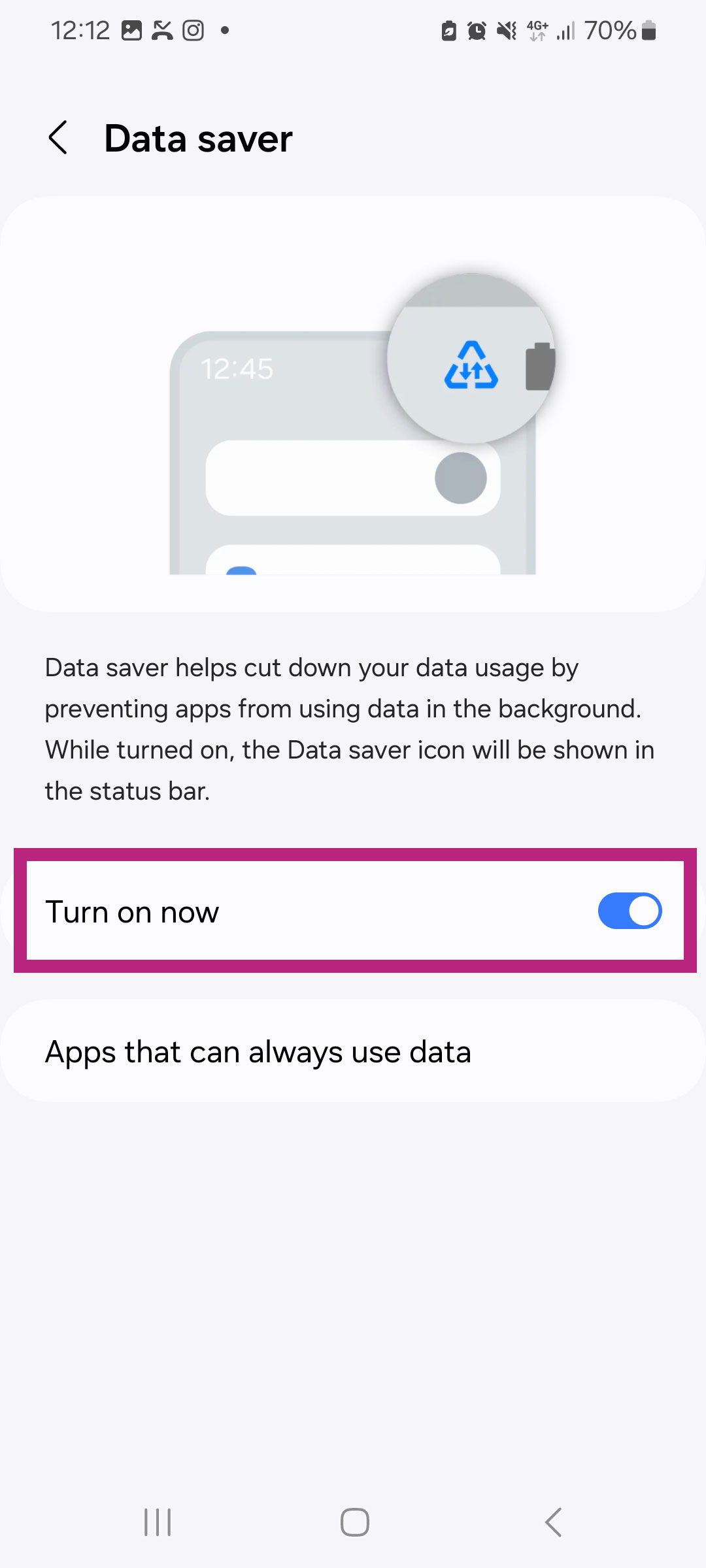
Datensparen, jetzt aktivieren
Bei einem unbegrenzten Tarif sorgt diese Einstellung dafür, dass Sie mit voller Geschwindigkeit surfen können: Das tägliche Highspeed-Volumen reicht länger, wenn keine Apps im Hintergrund laufen. Die Fair-Use-Richtlinie erklärt, wie das tägliche Zeitfenster funktioniert.
Sechs weitere Möglichkeiten, damit Ihr Datenvolumen länger reicht
Die meisten Daten, die ein Telefon im Ausland verbraucht, werden für Dinge genutzt, um die niemand gebeten hat.
-
Aktualisieren Sie Ihre Apps nur über WLAN
App-Stores laden Hunderte von Megabyte ohne Nachfrage herunter. Stellen Sie automatische Updates in den Store-Einstellungen auf WLAN um.
-
Apps im Hintergrund deaktivieren
Hintergrundaktualisierung auf dem iPhone, Hintergrunddaten auf Android. Ihre Apps werden dann geladen, wenn Sie sie öffnen, nicht den ganzen Tag über.
-
Videoqualität verringern
Eine Stunde Video kann bei normaler Qualität etwa 700 MB verbrauchen, in HD deutlich mehr. Stellen Sie Ihre Streaming-Apps auf die niedrigste Qualität ein, mit der Sie zurechtkommen.
-
Autoplay in sozialen Apps deaktivieren
Videos, die beim Scrollen automatisch starten, sind der schnellste Weg, einen Tarif aufzubrauchen.
-
Vor Ihrer Abreise herunterladen
Offline-Karten Ihres Reiseziels, Musik, Podcasts und Serien: Laden Sie sie über WLAN im Hotel oder zu Hause herunter.
-
Fotosicherungen über WLAN durchführen
Urlaubsfotos und -videos werden im Hintergrund in die Cloud synchronisiert. Allein dieser Upload kann mehrere Gigabyte umfassen.
Nicht sicher, wo Sie stehen? Ihre eSIM-Liste zeigt, was auf jeder Ihrer eSIMs noch verfügbar ist: Meine eSIMs.
Schon fast aufgebraucht?
Sie können die aktive eSIM mit wenigen Klicks aufladen, ohne etwas auf Ihrem Smartphone zu ändern.