
How to install Quibity eSIM on Android
Thank you for choosing Quibity. Pick your device below and follow the step-by-step instructions to install and activate your eSIM.
What phone do you have?
Android eSIM setup guide
Choose your phone brand
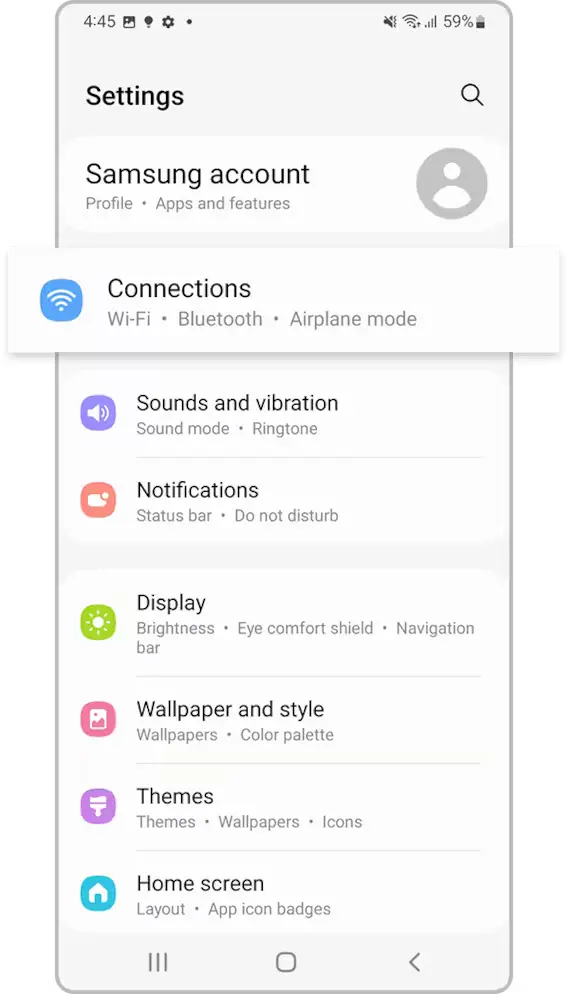
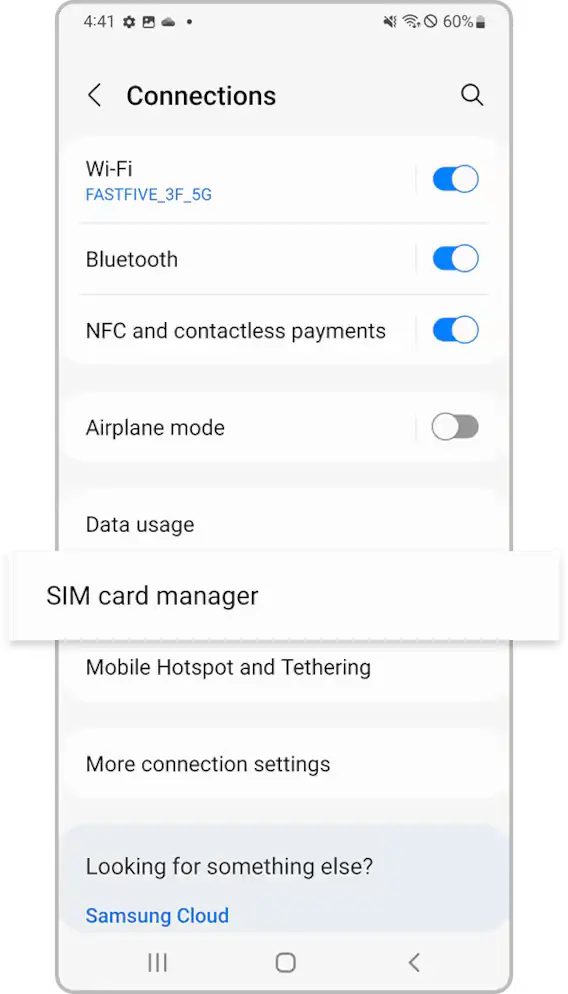
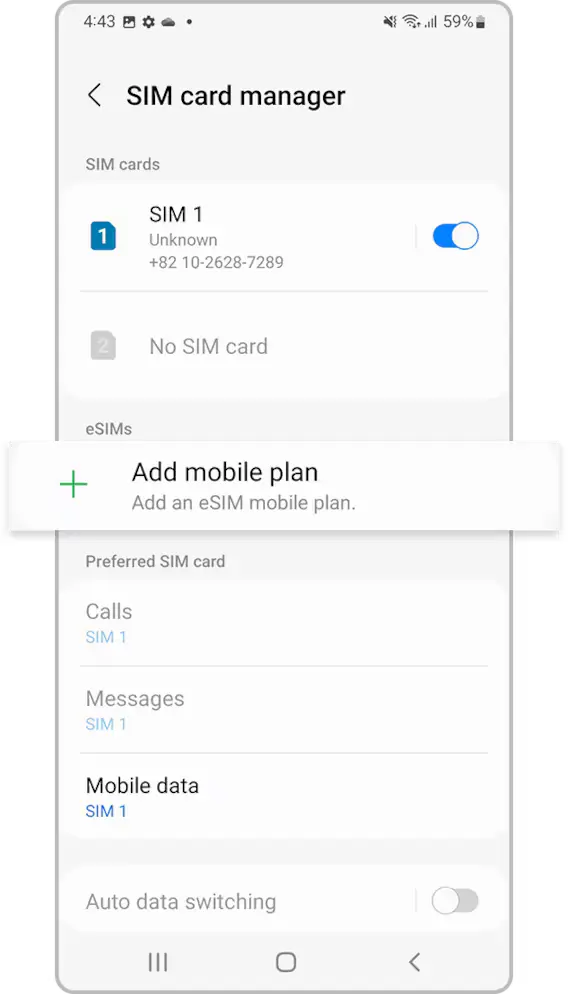
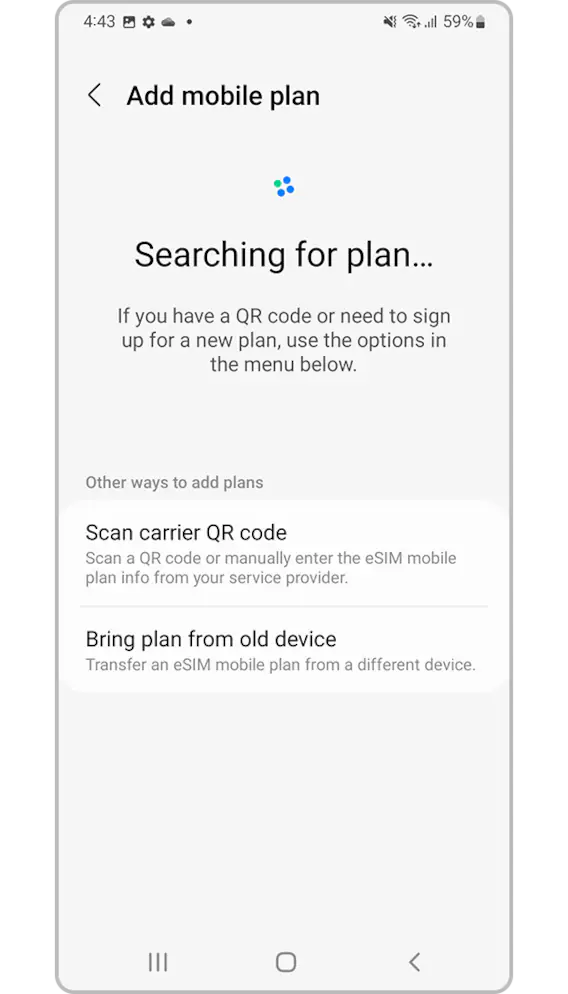
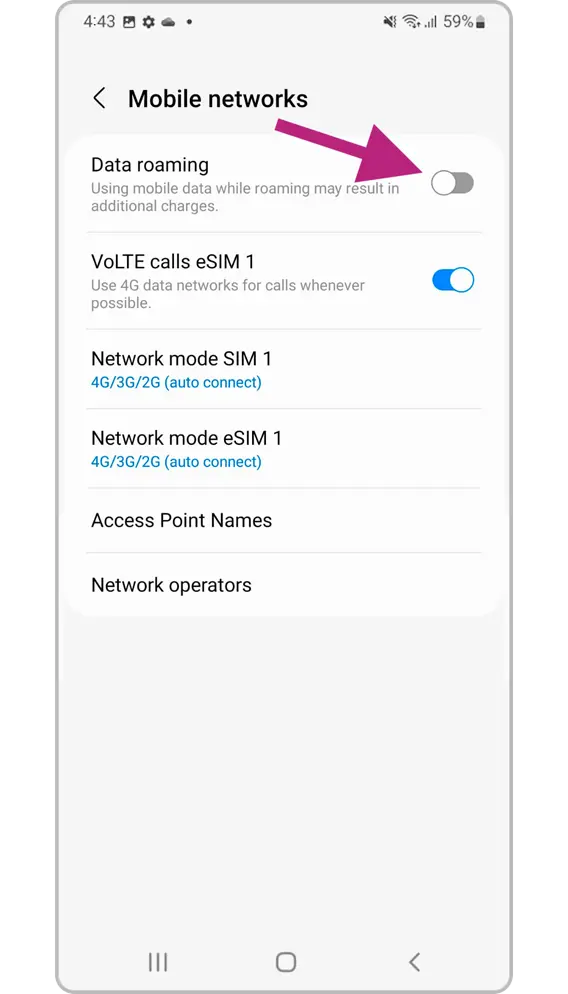
1
Go to Settings > Connection.
Step 1 of 5
Manual setup instructions (if you cannot scan the QR code)
- Go to “Settings”, tap “Connections”, then tap “SIM card manager” on your device.
- Tap “Add mobile plan”, then tap “Scan carrier QR code”.
- Tap “Enter activation code”.
- Enter the SM-DP+ Address & Activation Code by copying it, tap “Connect”, then tap “Confirm”.
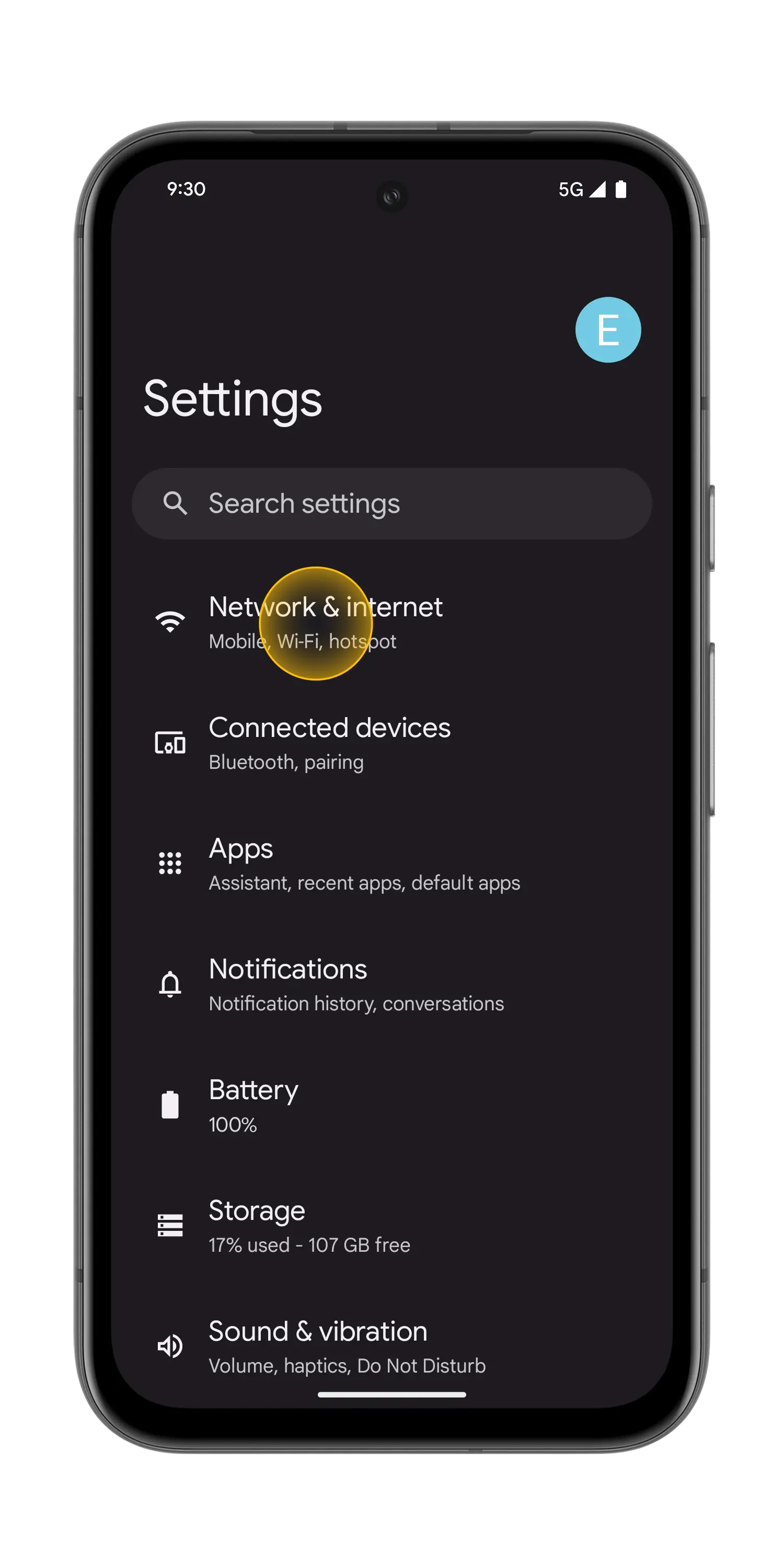
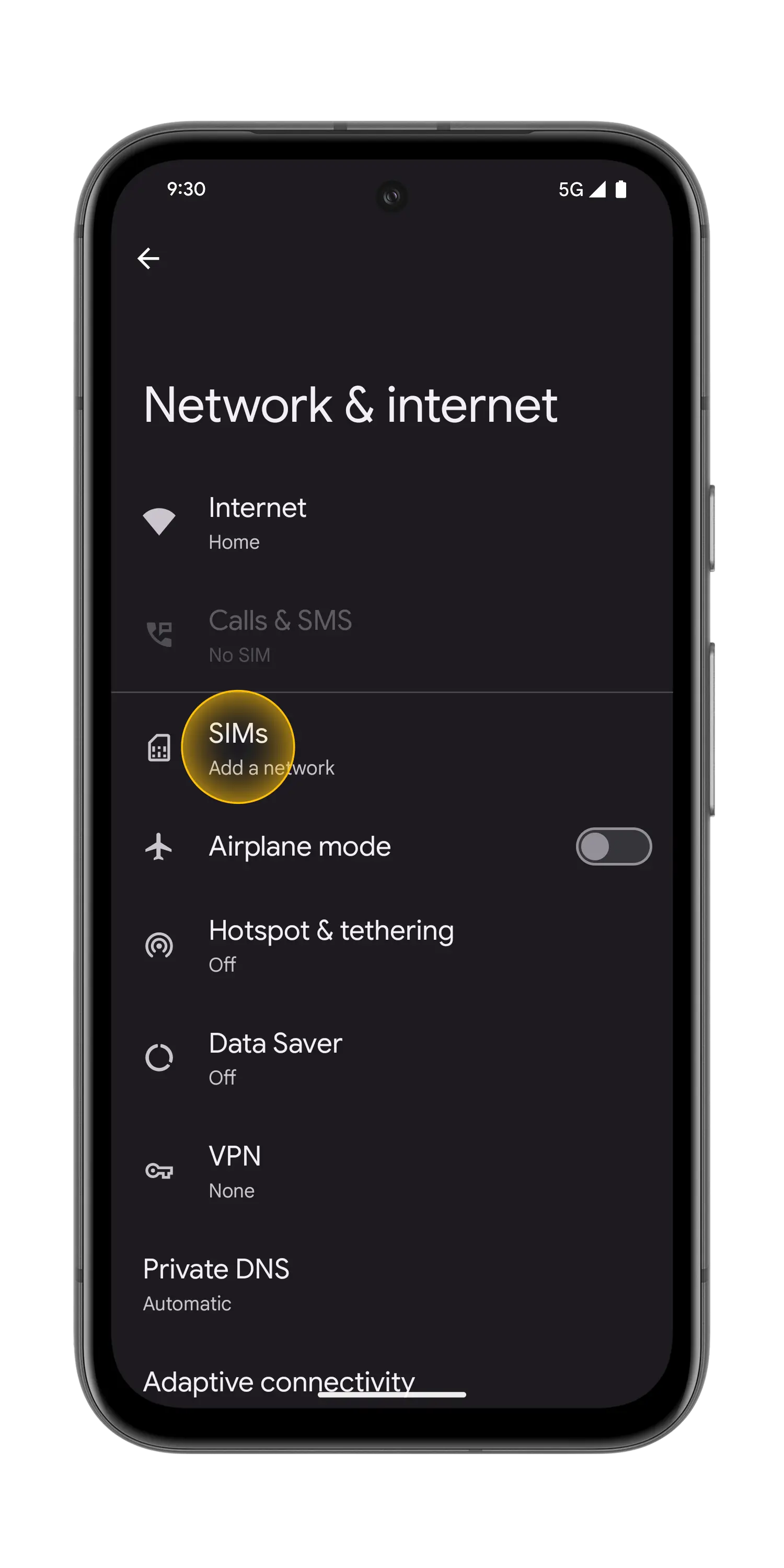
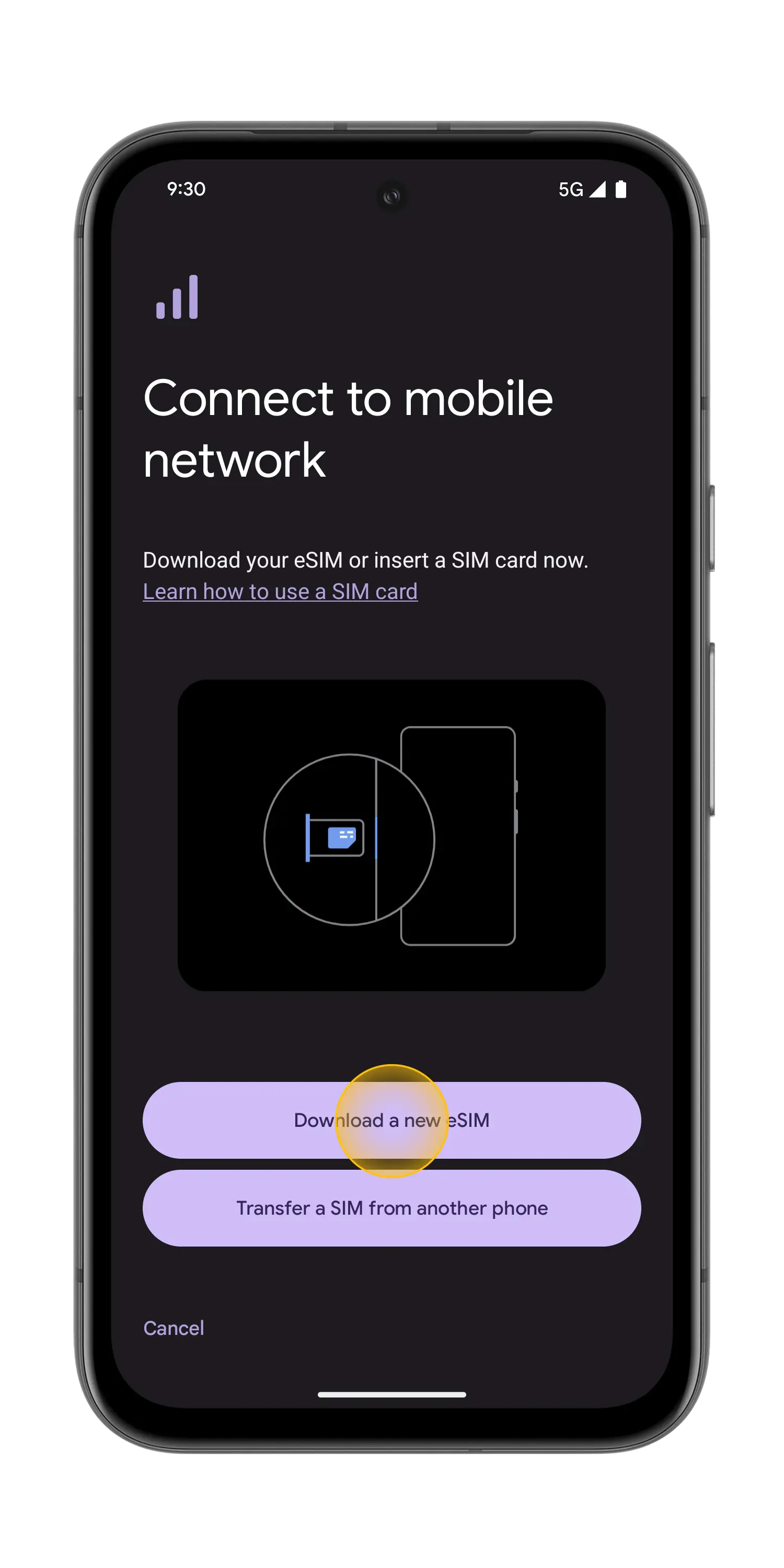
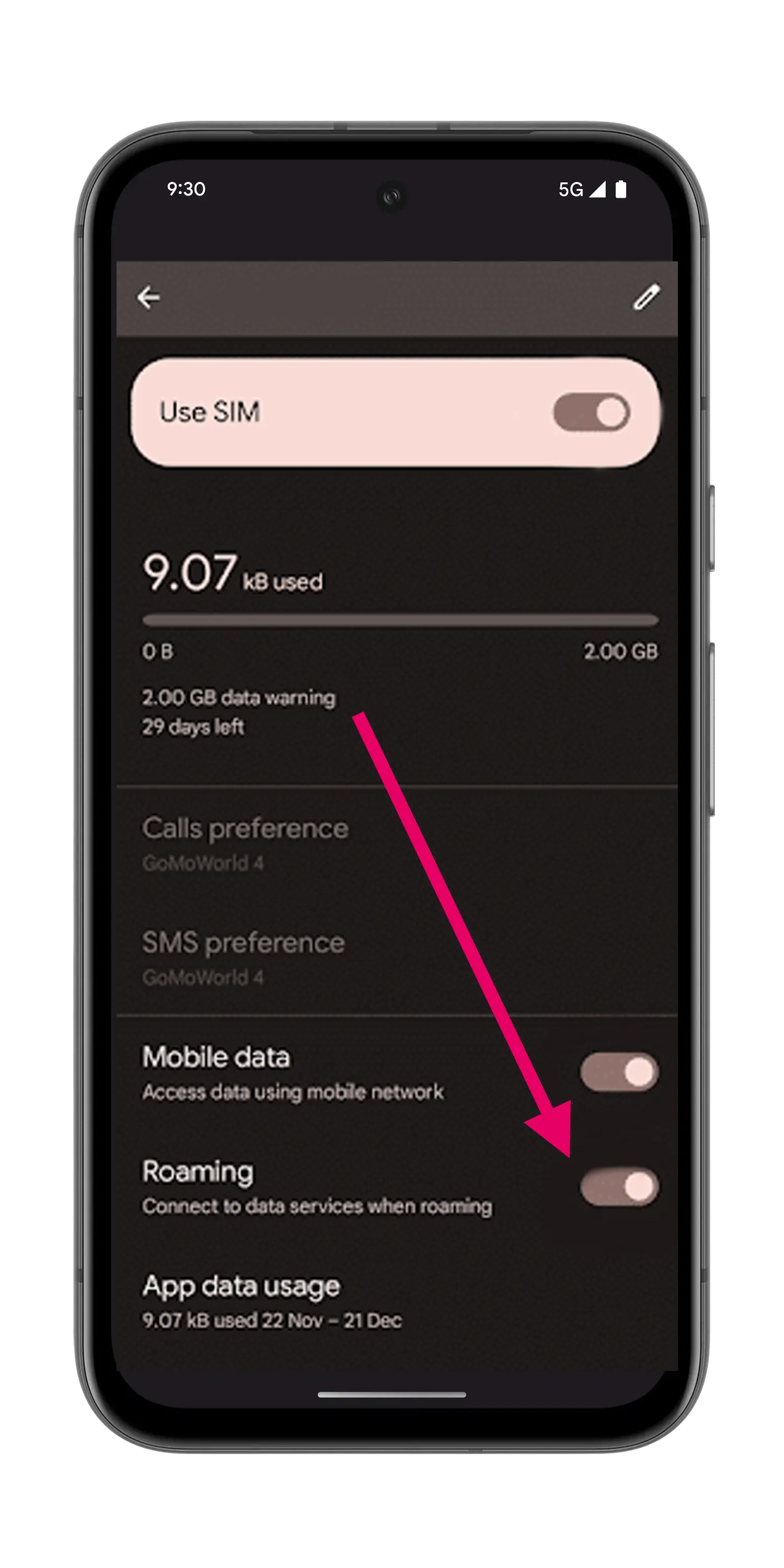
1
Go to Settings > Connection.
Step 1 of 4
Manual setup instructions (if you cannot scan the QR code)
- Go to “Settings”, tap “Network & internet”, then tap “(+)” next to the SIMs section, if it's not available tap “SIMs/Mobile network” on your device.
- Tap “Download a SIM instead?”, then tap “Next”.
- Tap “Use a different network” if you need to confirm your network.
- Tap “Need help?”, then tap “Enter it manually”.
- Enter the SM-DP+ Address & Activation Code by copying it, tap “Continue”, then tap “Download/Activate”.
- Tap “Settings/Done” when you see the Download Finished screen.
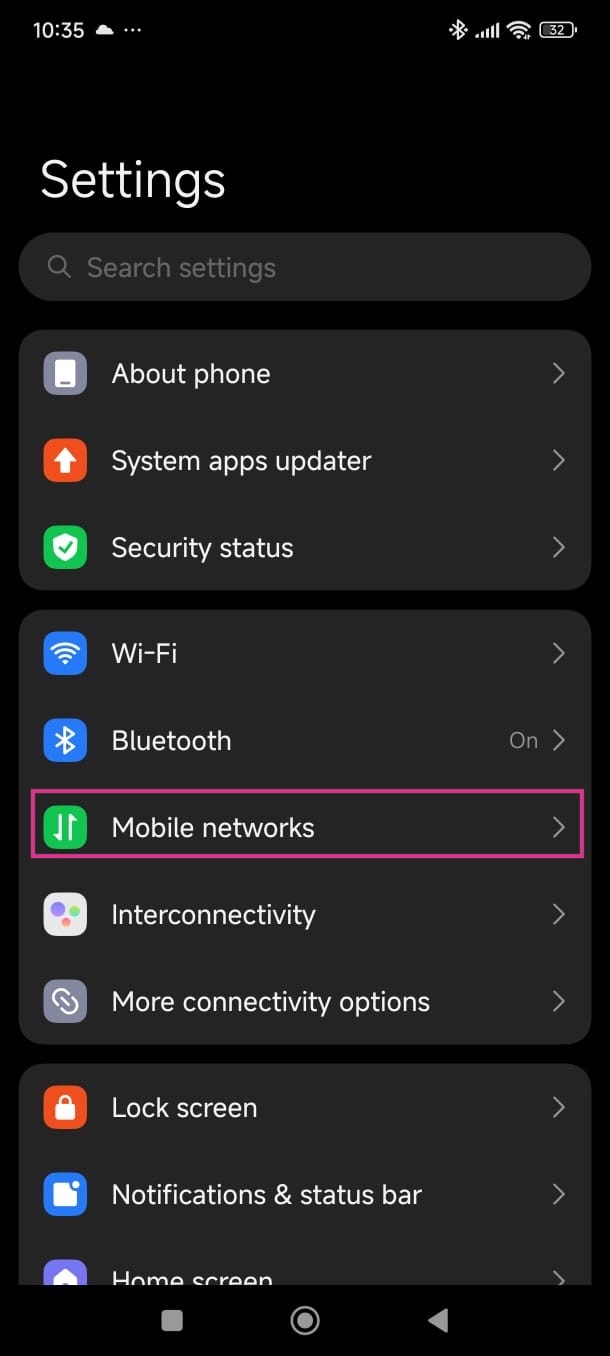
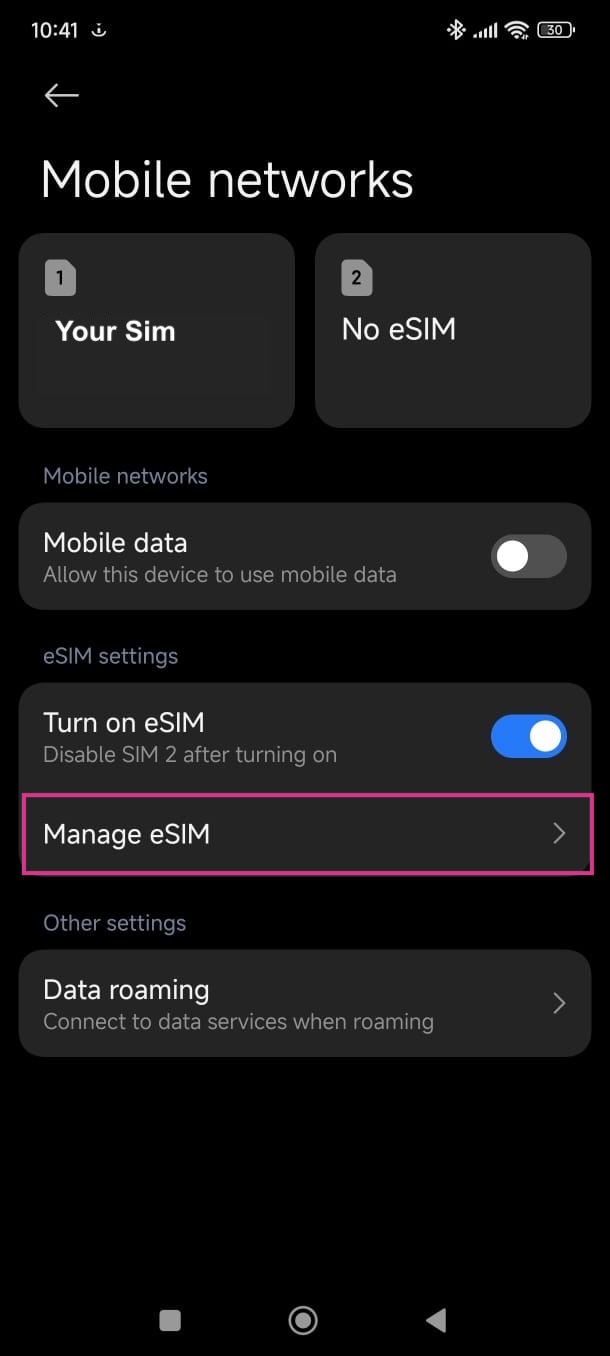
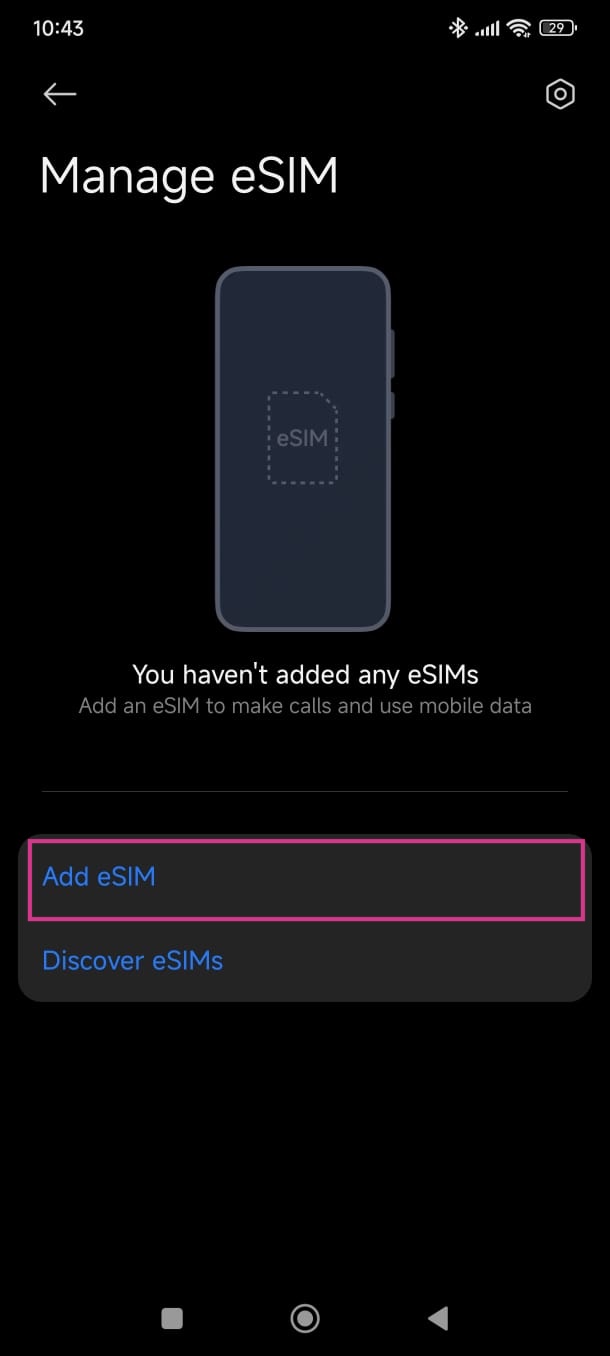
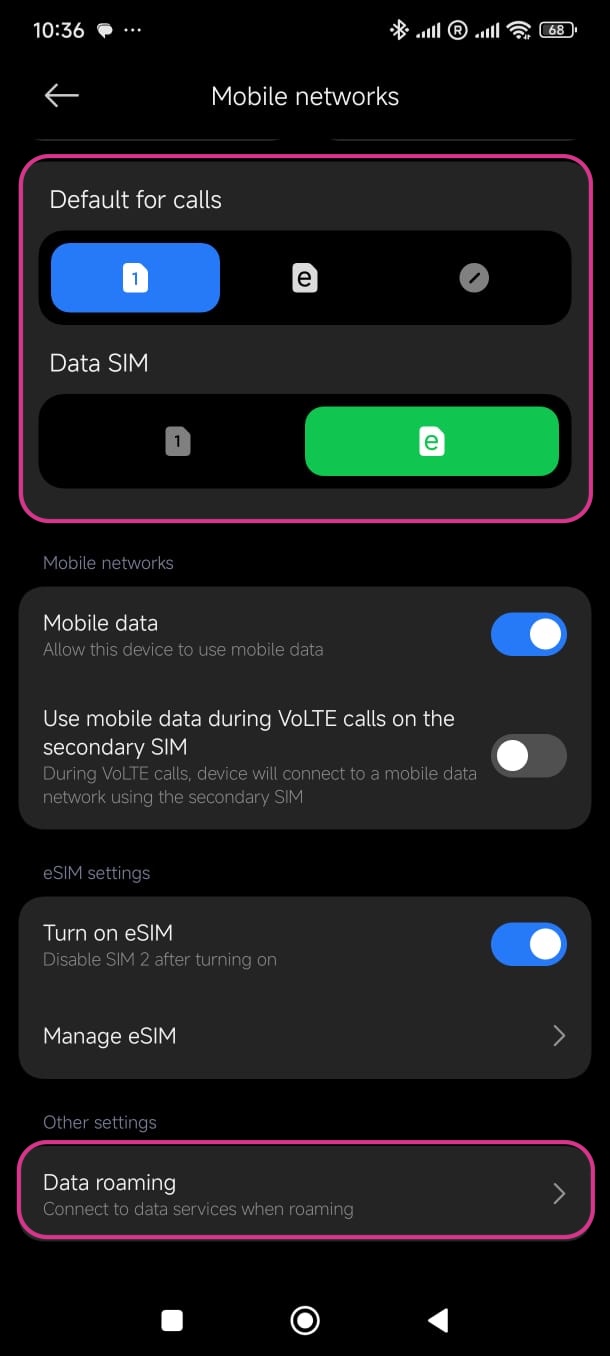
1
Go to Settings > Mobile networks.
Step 1 of 4
Manual setup instructions (if you cannot scan the QR code)
- Go to “Settings”, tap “Mobile networks”, then tap “Manage eSIM”.
- Tap “Add eSIM”.
- Instead of scanning the qrcode, push "Add manually instead"
- Tap “Use activation code”.
- Enter the SM-DP+ Address & Activation Code by copying it, tap Ok, then tap “Add”.
- Tap “Got it” when you see the Download Finished screen.
Steps vary slightly by manufacturer. The flow below (shown on a Samsung device) applies to most Android phones: open your network settings, add an eSIM, scan the QR code, and enable data roaming.
1
Go to Settings > Connection.
Step 1 of 5
Manual setup instructions (if you cannot scan the QR code)
- Go to “Settings”, tap “Connections”, then tap “SIM card manager” on your device.
- Tap “Add mobile plan”, then tap “Scan carrier QR code”.
- Tap “Enter activation code”.
- Enter the SM-DP+ Address & Activation Code by copying it, tap “Connect”, then tap “Confirm”.