
How to install Quibity eSIM on Iphone
Thank you for choosing Quibity. Pick your device below and follow the step-by-step instructions to install and activate your eSIM.
What phone do you have?
iPhone eSIM setup guide
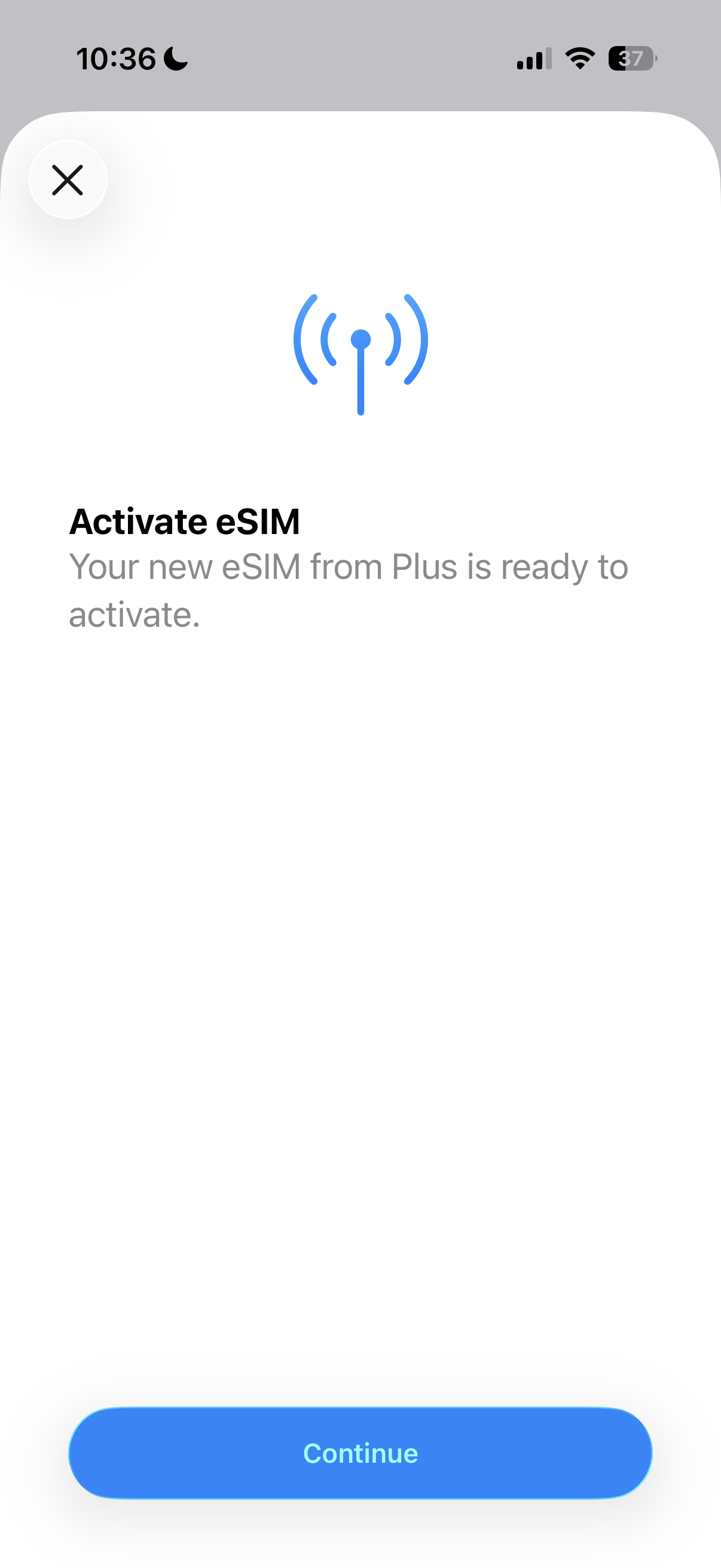
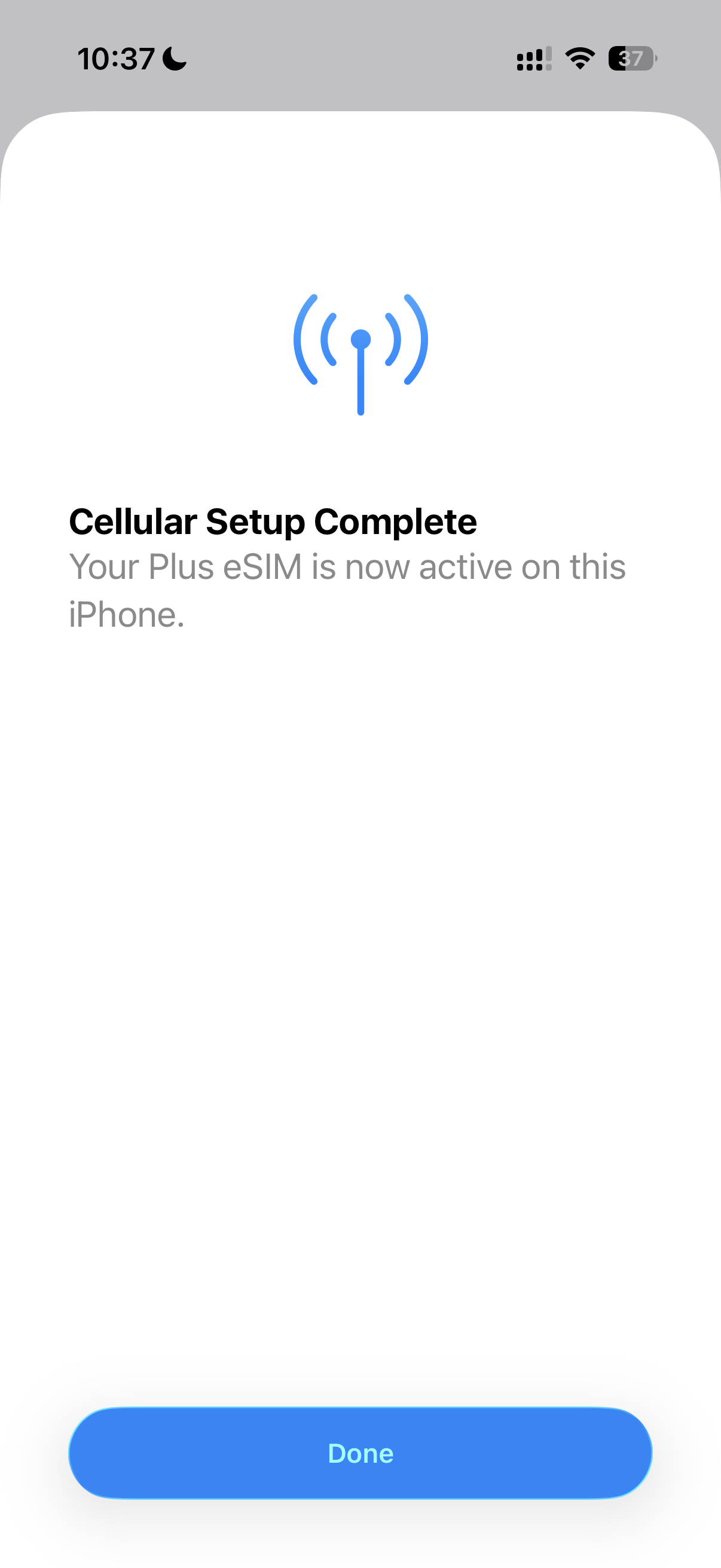
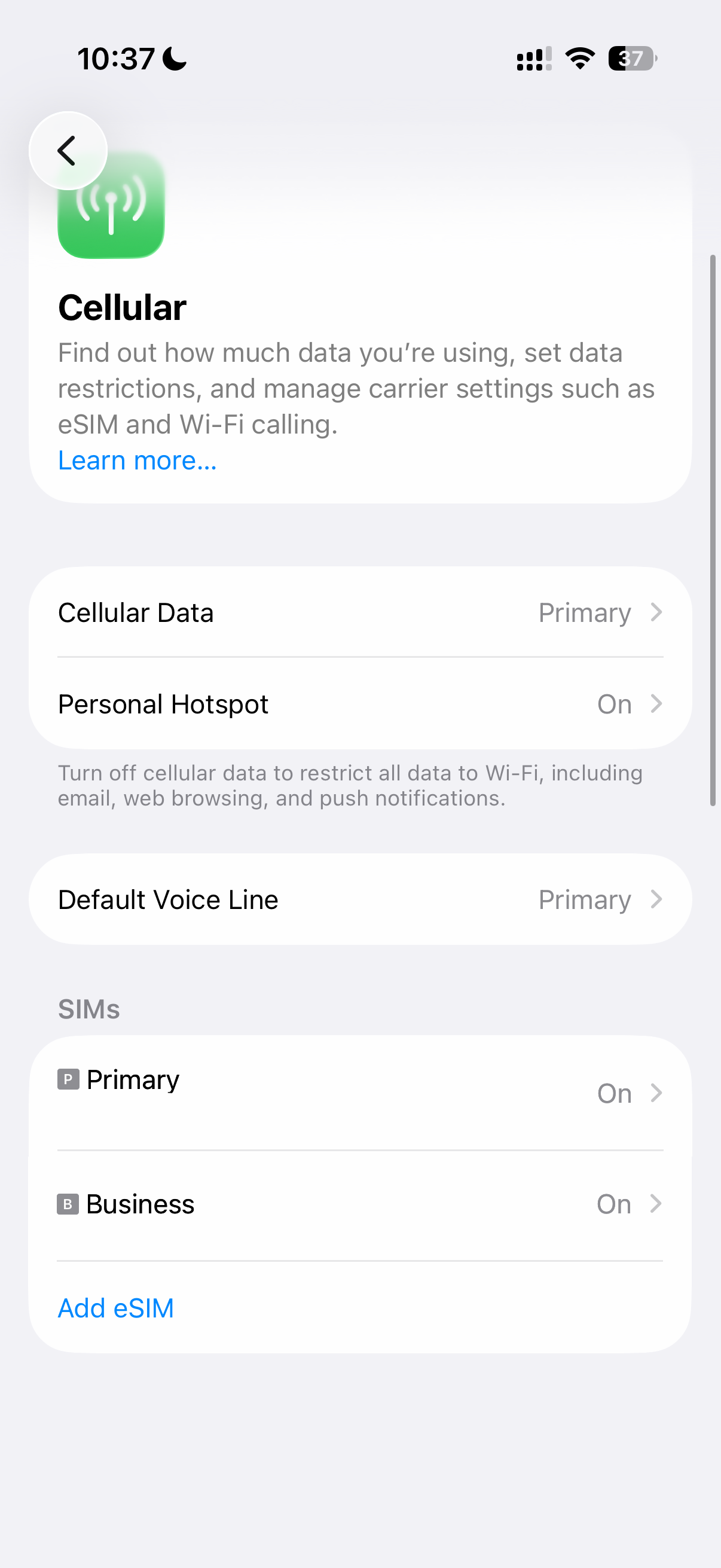
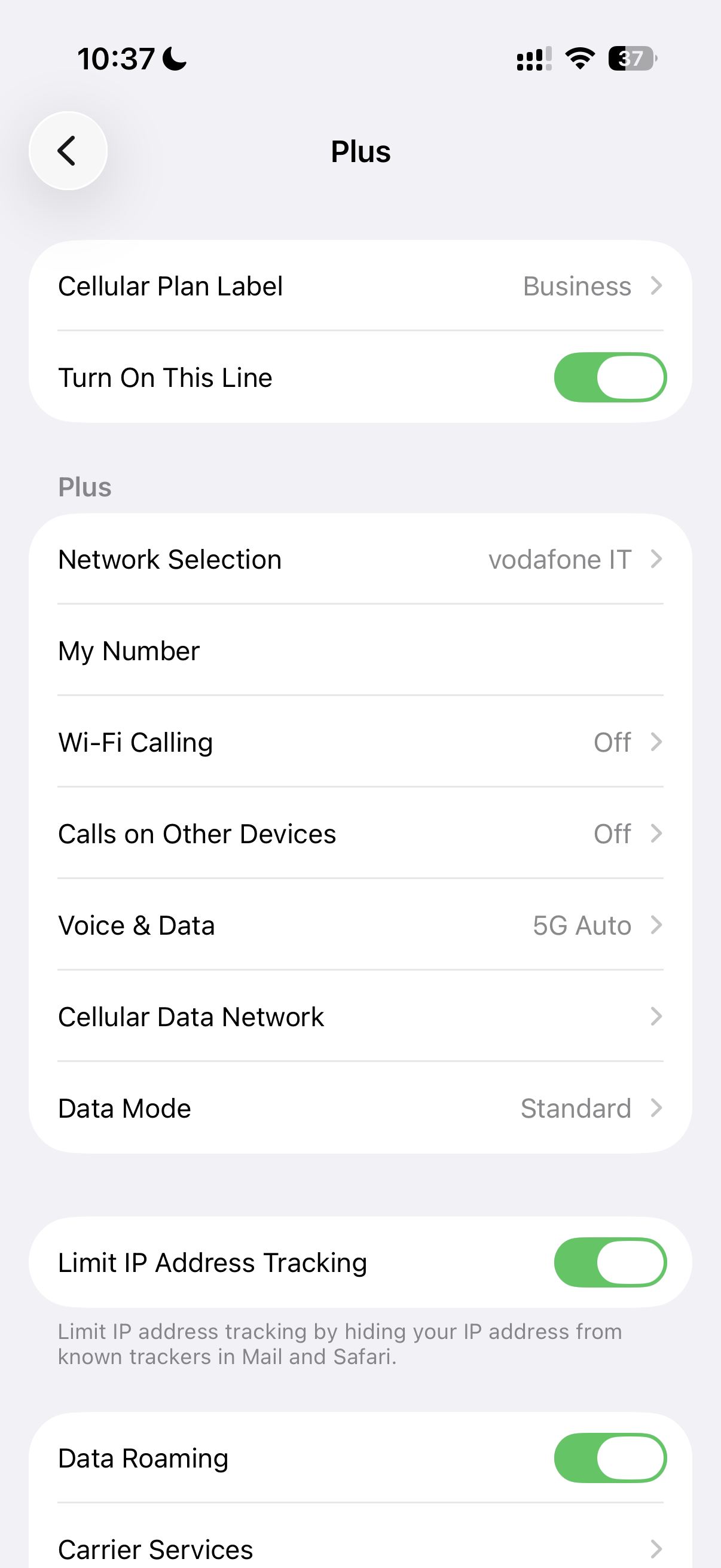
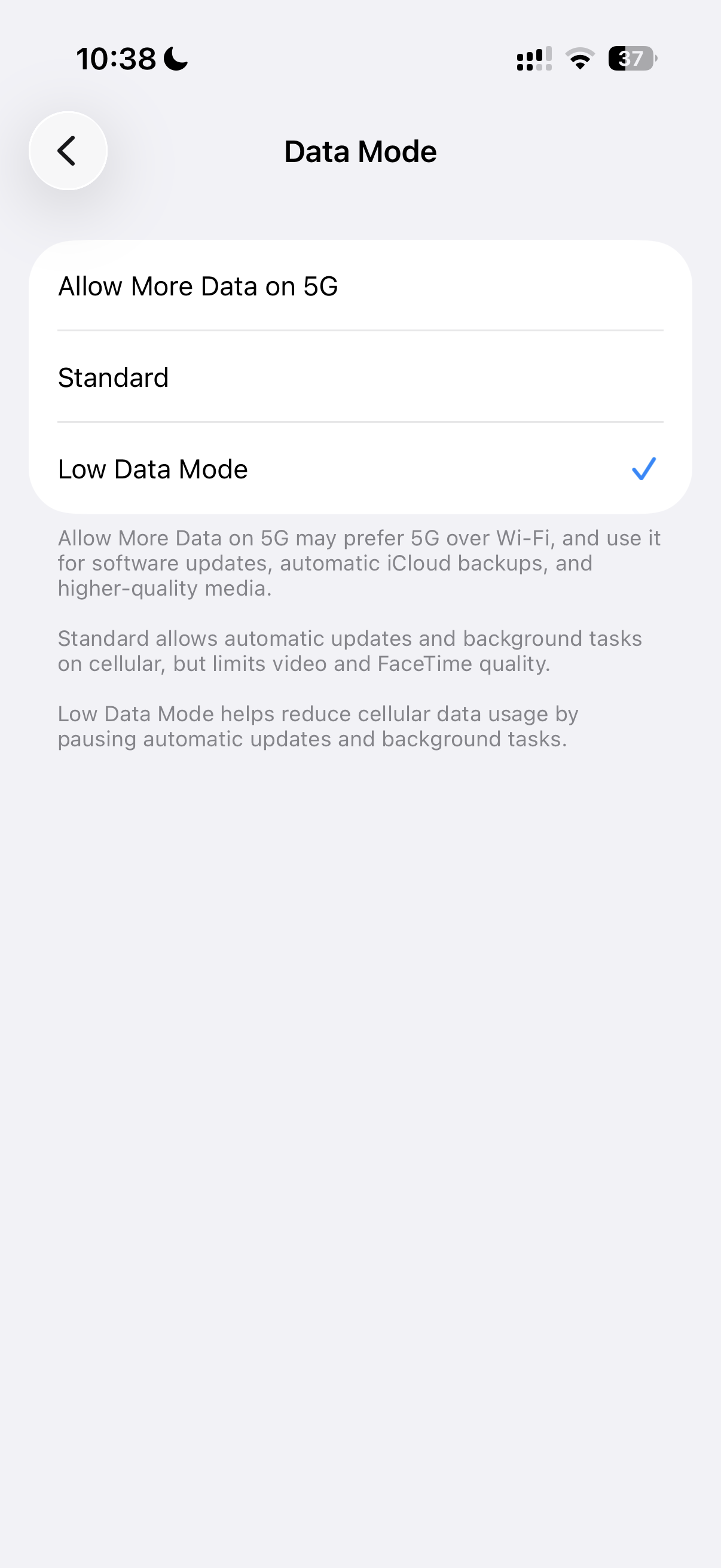
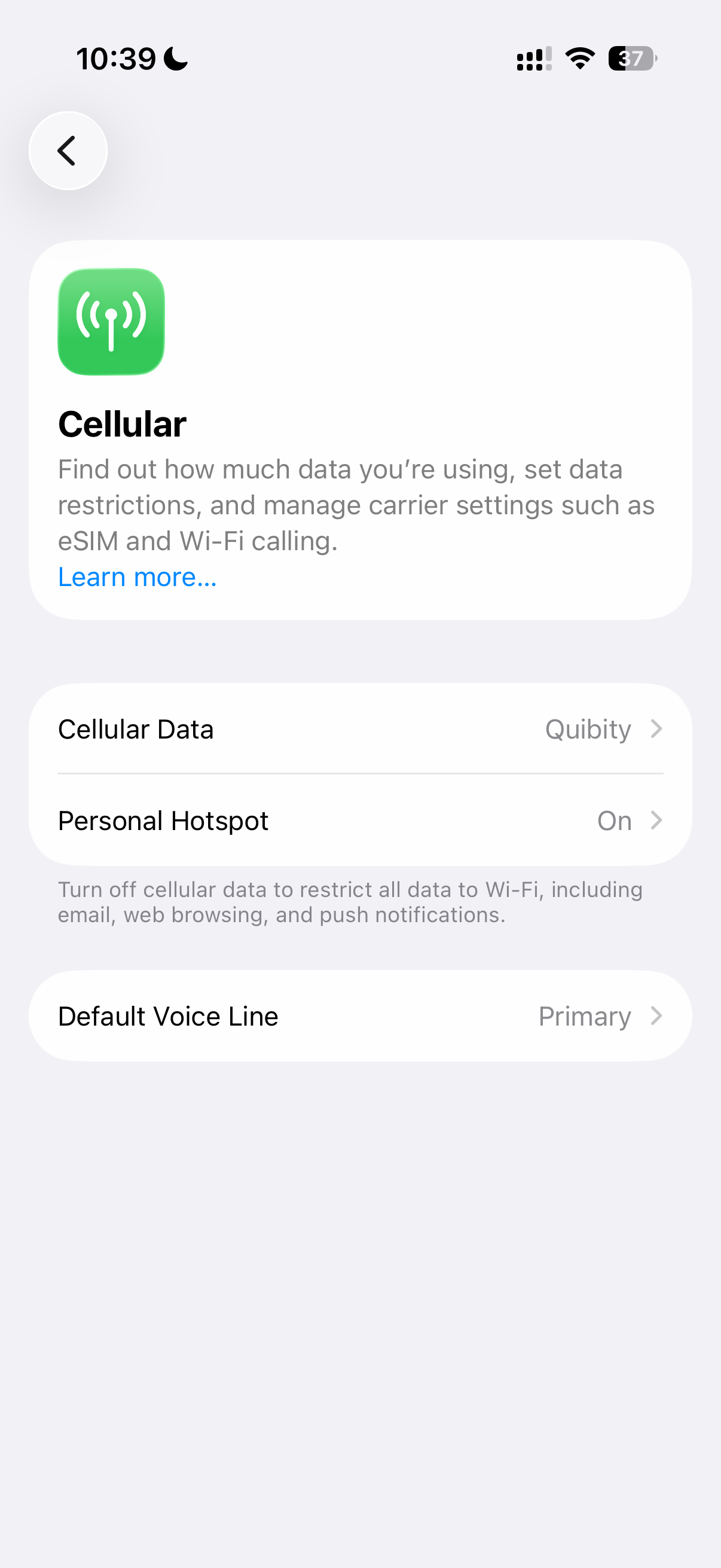
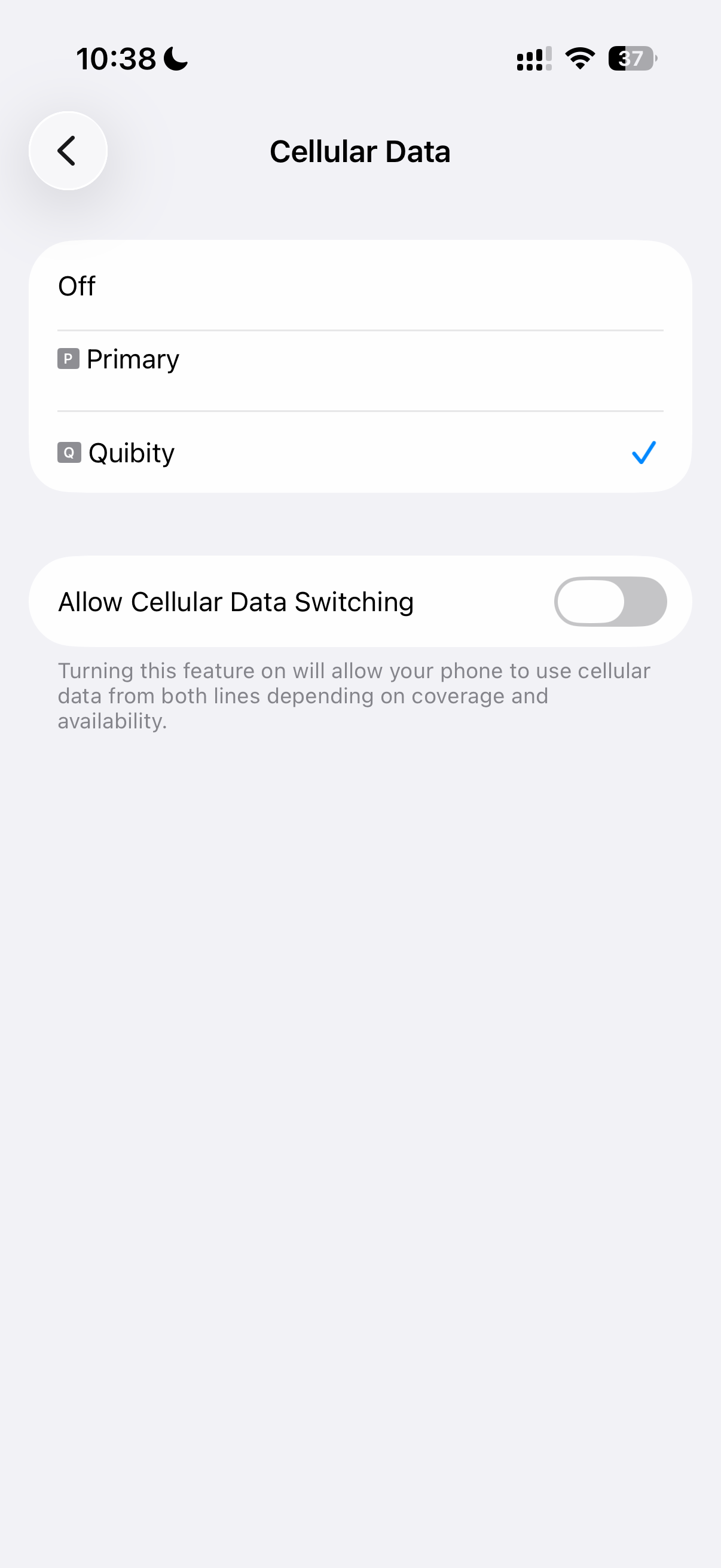
1
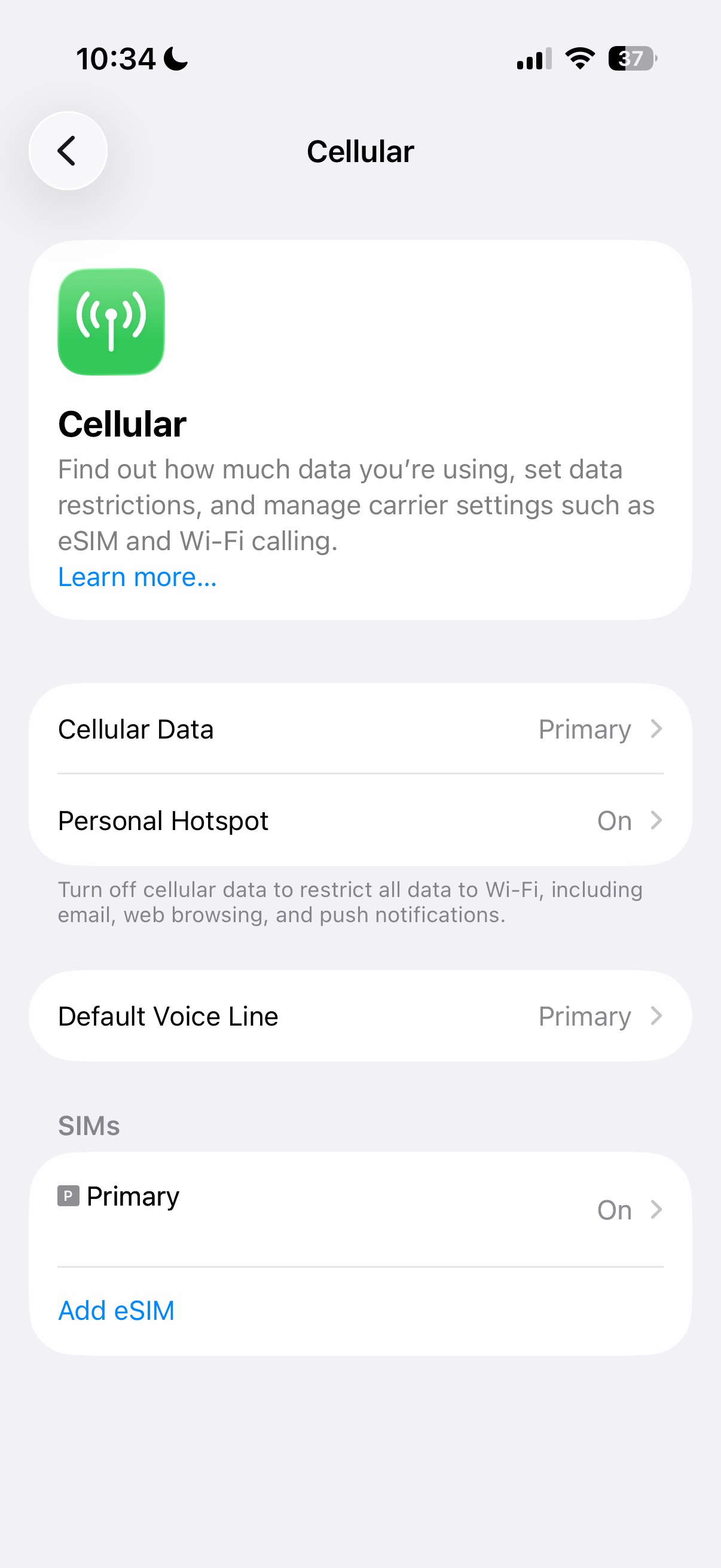
Go to Settings > Mobile Service/Cellular and tap "add eSIM"
Step 1 of 15
IMPORTANT: If you are not in the destination country, you need to select your primary SIM as "Cellular Data" on step 14 and change it after you arrive at your destination.
Manual iOS setup instructions
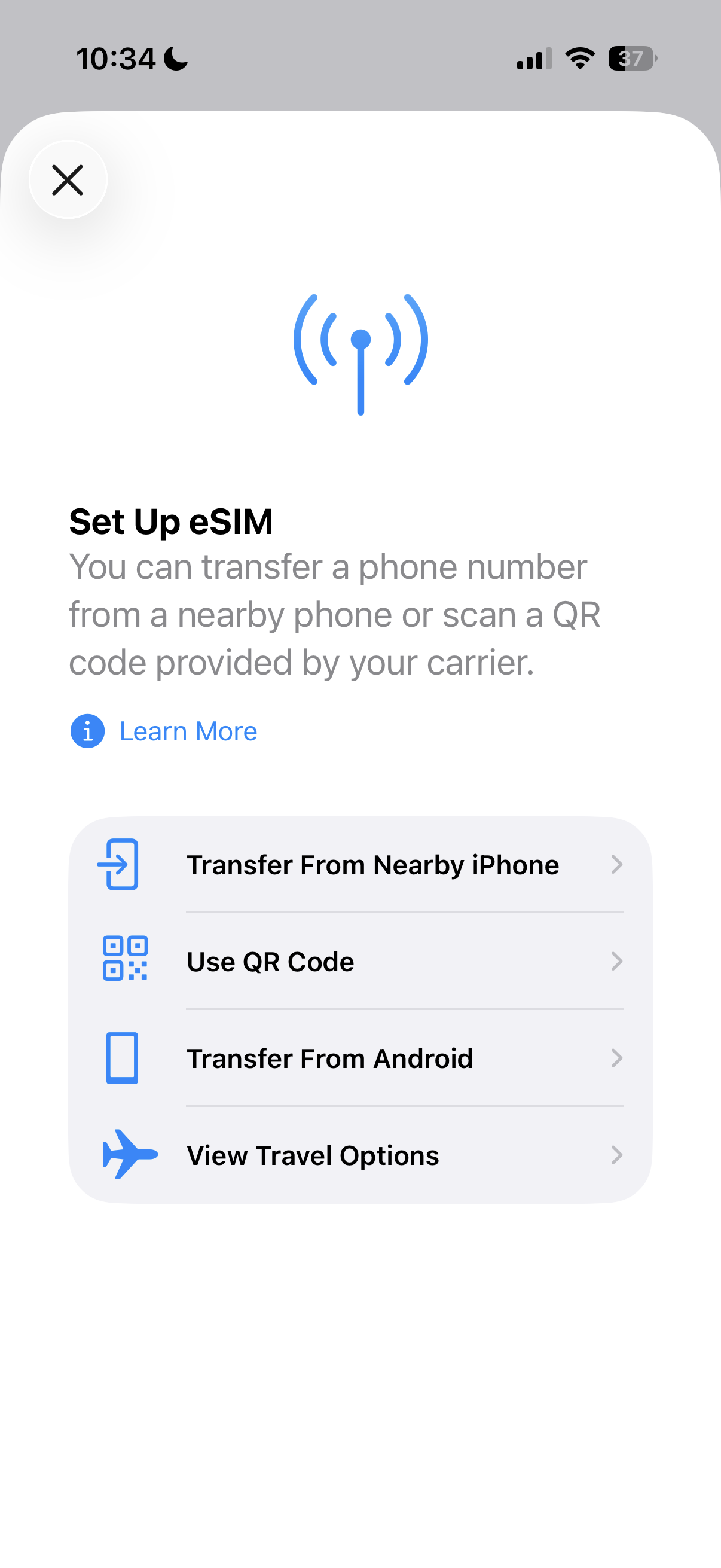
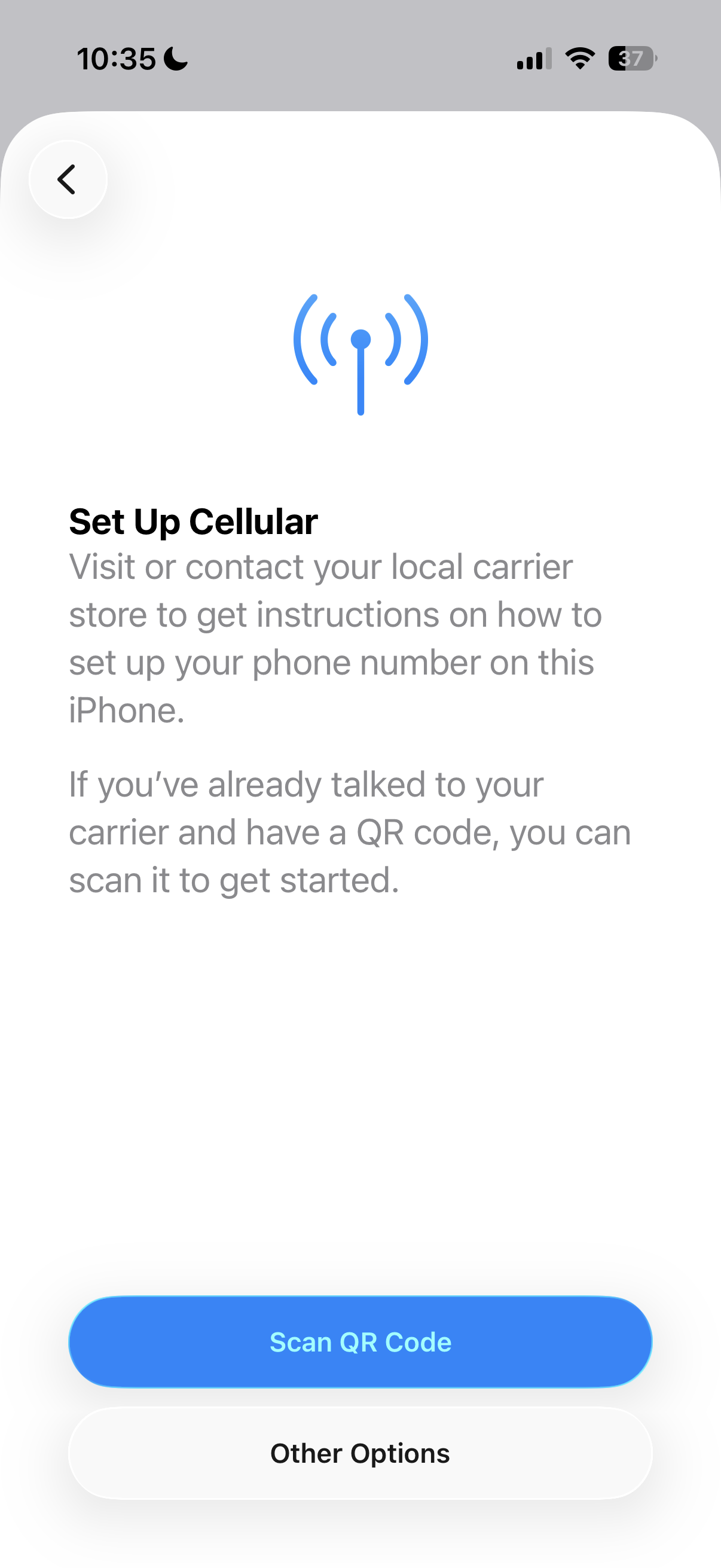
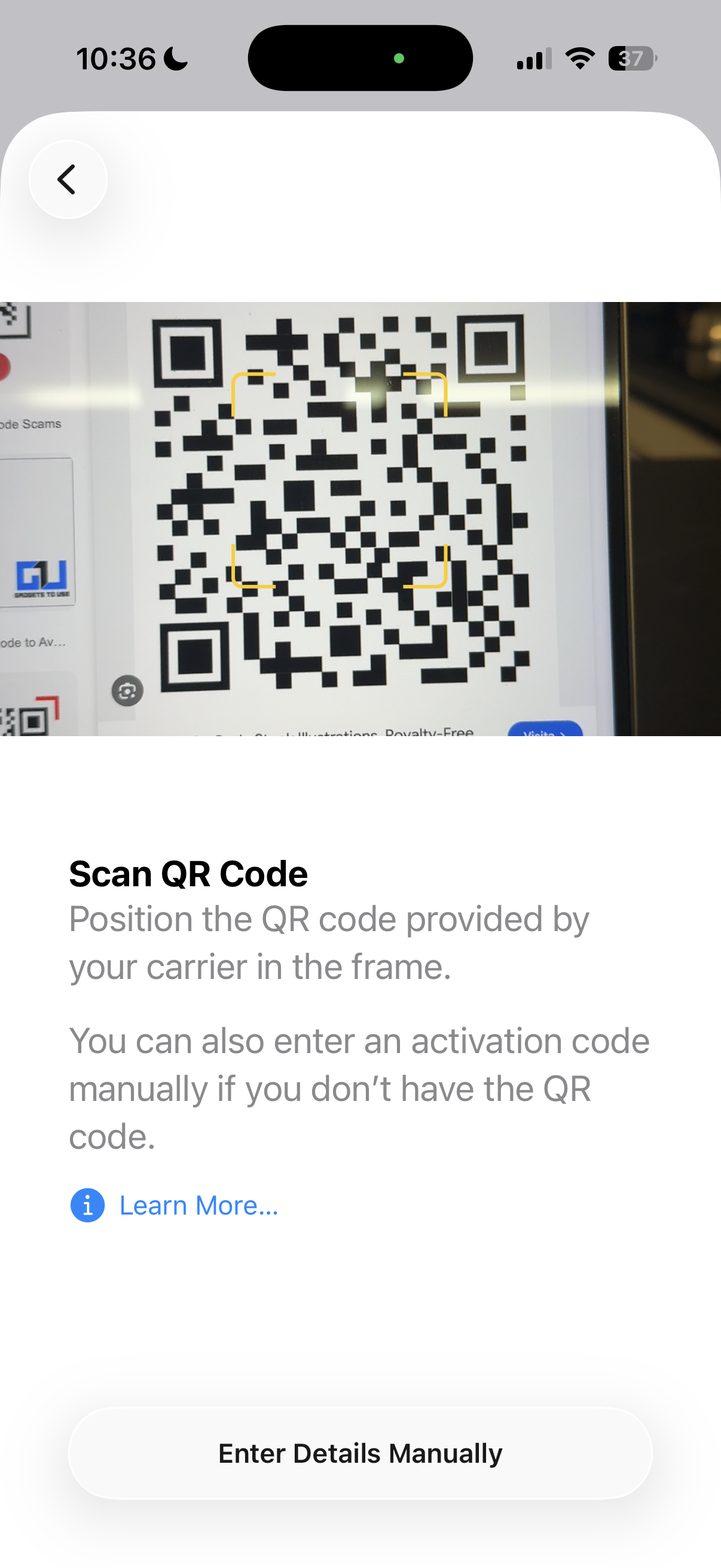
- Go to Settings > Cellular/Mobile Data > Add eSIM or Set up Cellular/Mobile Service > Use QR Code on your device.
- Tap “Enter Details Manually” and enter the SM-DP+ Address and Activation Code by copying them, tap “Next”, then tap “Continue” twice and wait for a while. Your eSIM will connect to the network, this may take a few minutes, then tap “Done”.
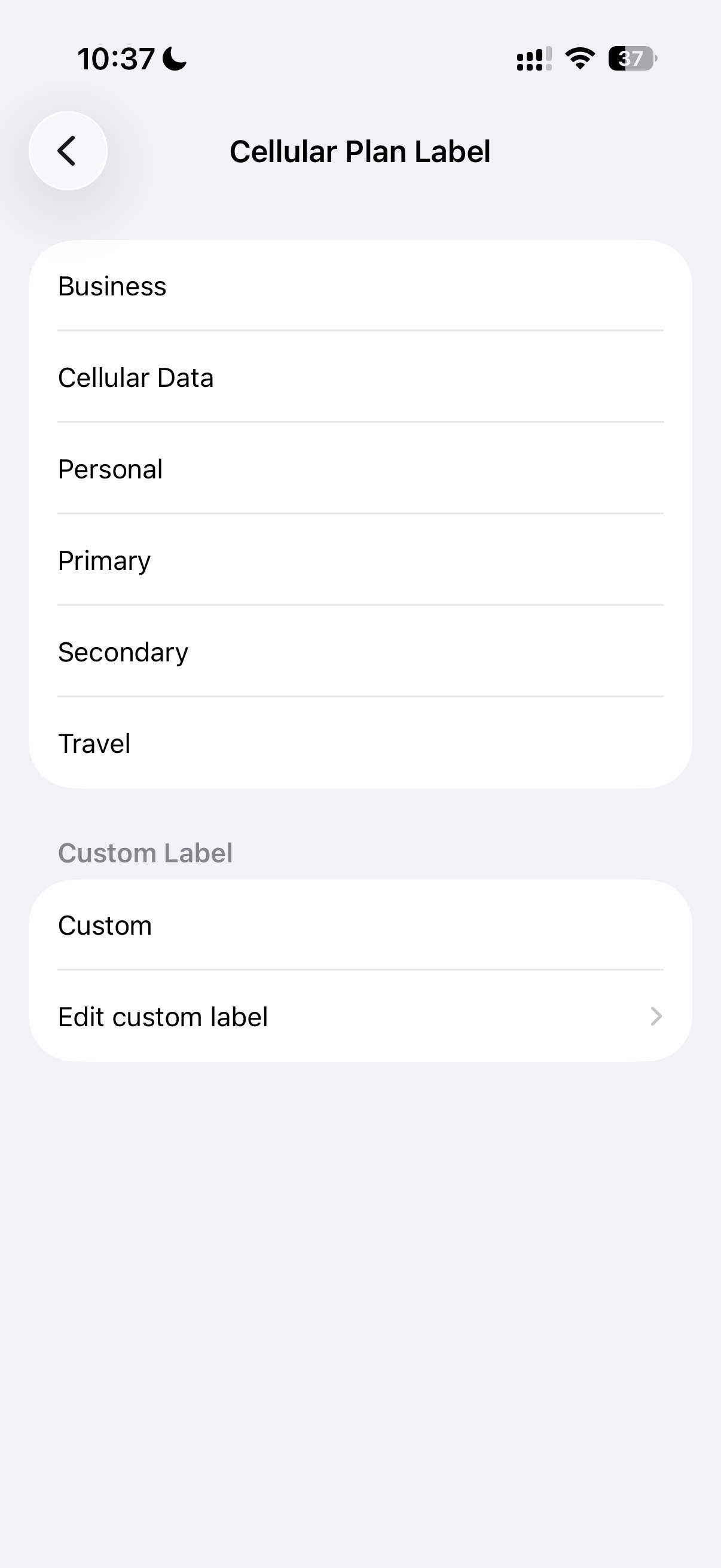
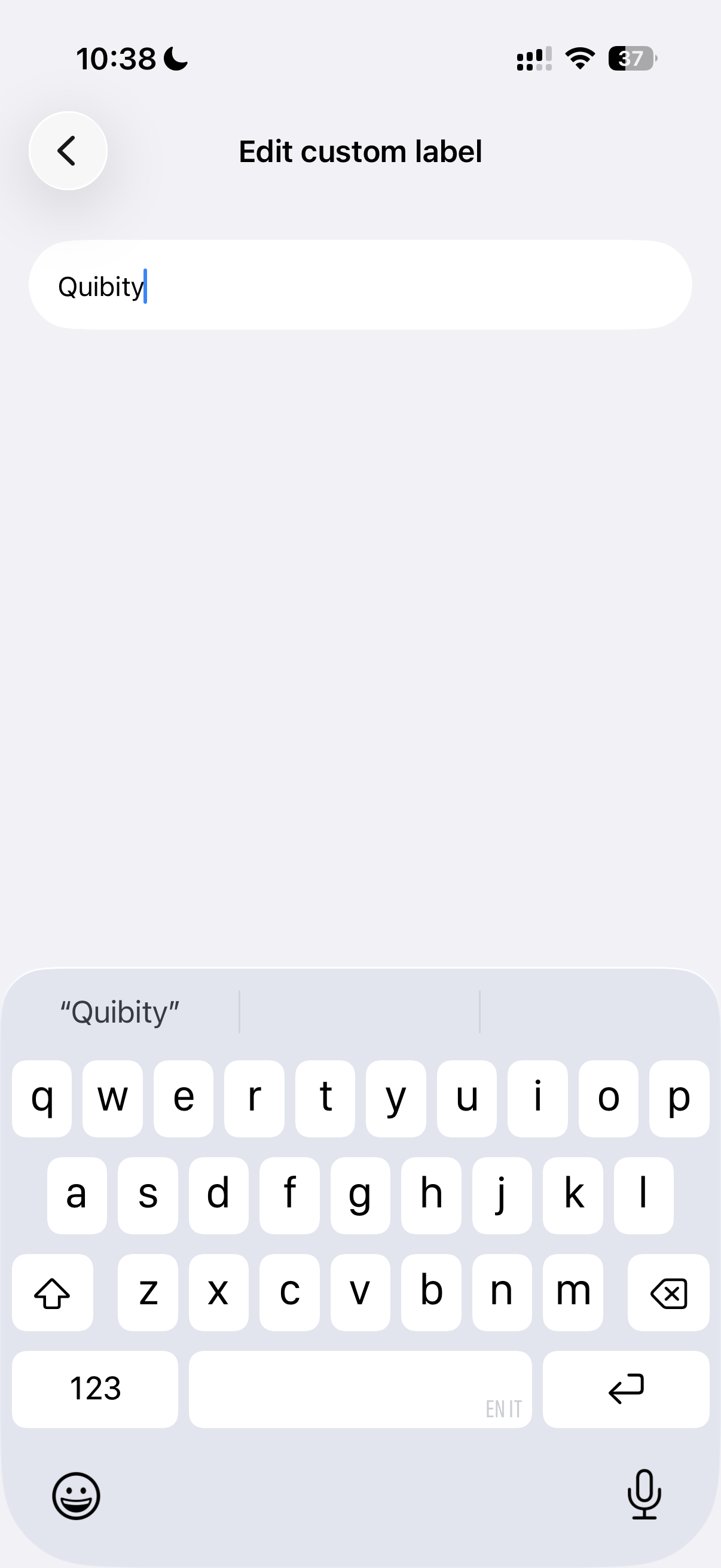
- Choose a label for your new eSIM plan.
- Choose “Primary” for your default line, then tap “Continue”.
- Choose the “Primary” you want to use with iMessage and FaceTime for your Apple ID, then tap “Continue”.
- Choose your new eSIM plan for cellular/mobile data, then tap “Continue”.