
Data usage
How to avoid High Data Usage
One setting stops your phone from spending data in the background. It takes half a minute, and you can turn it off whenever you want.
- It does not slow your connection down: it pauses updates and background traffic.
- On an unlimited plan it keeps you at full speed for longer.
Turn it on now
Pick your phone. The setting has a different name on each system, but it does the same thing.
iPhone: Low Data Mode
- Settings
- Mobile Service
- Your eSIM
- Data Mode
-
Open your eSIM in the settings
In Settings, open Mobile Service (Cellular on some iPhones) and tap the line with your Quibity eSIM.
-
Open Data Mode
It is the entry that decides how freely the line can use data.
-
Select Low Data Mode
The blue tick moves next to it. That is all: there is nothing to save.
-
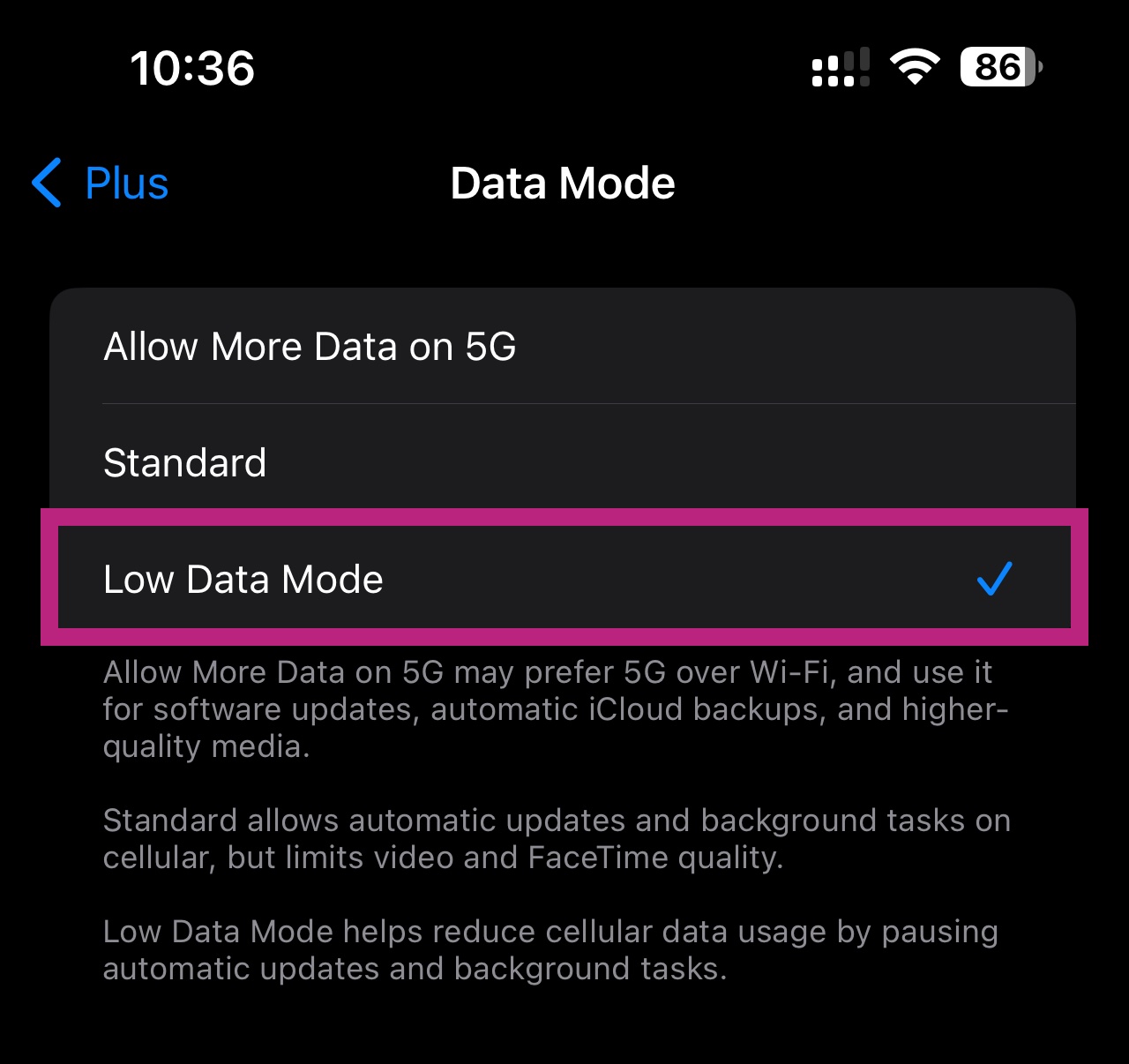
Settings, Mobile Service, your eSIM, Data Mode
Android: Data Saver
- Settings
- Connections
- Data usage
- Data saver
-
Open Data usage
In Settings, open Connections (Network and internet on a Pixel) and then Data usage.
-
Tap Data saver
Then turn it on. Your apps stop using data when you are not looking at them.
-
Check that data roaming stays on
A Quibity eSIM always works in roaming. Data saver does not touch that setting, but it is worth a look.
Menu names change a little from brand to brand. The screens here come from a Samsung phone.
-
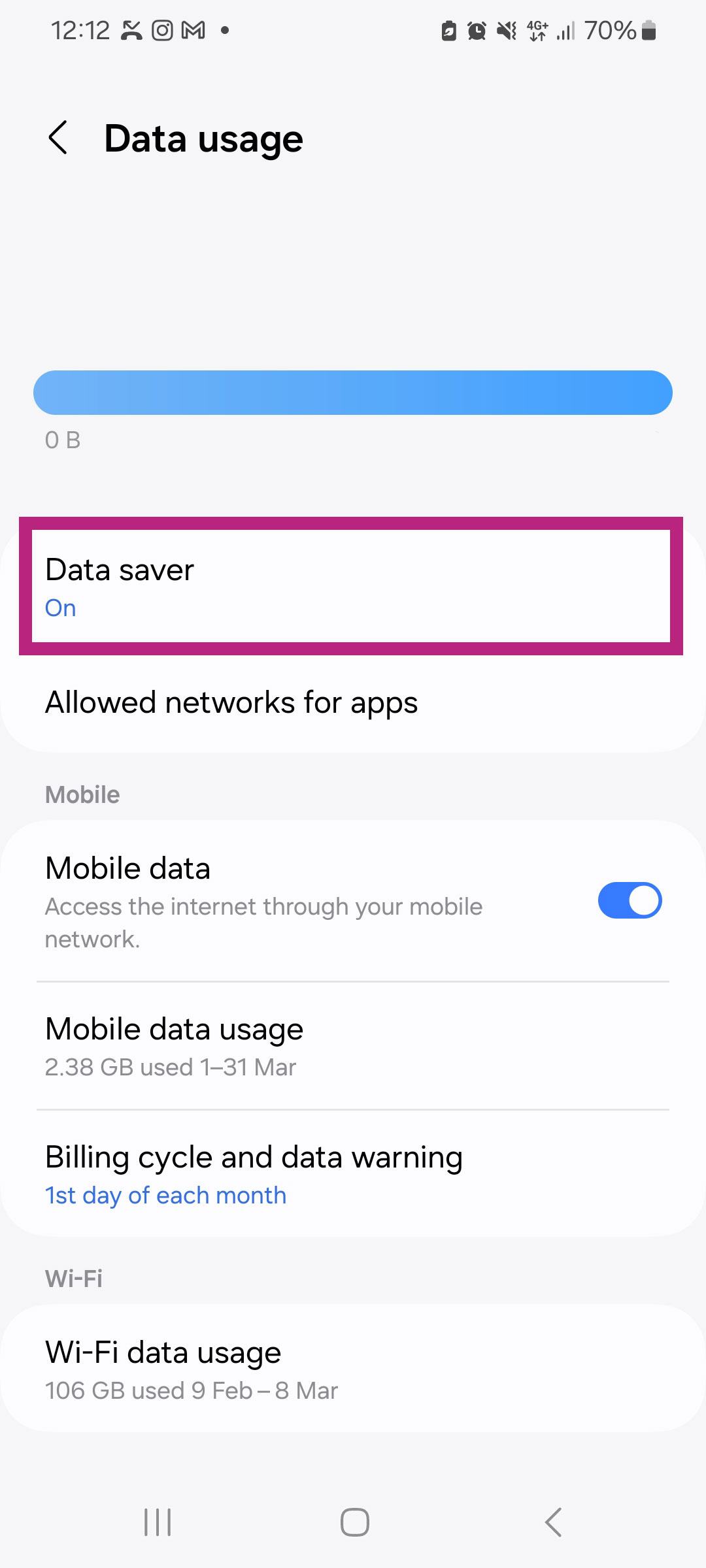
Settings, Connections, Data usage -
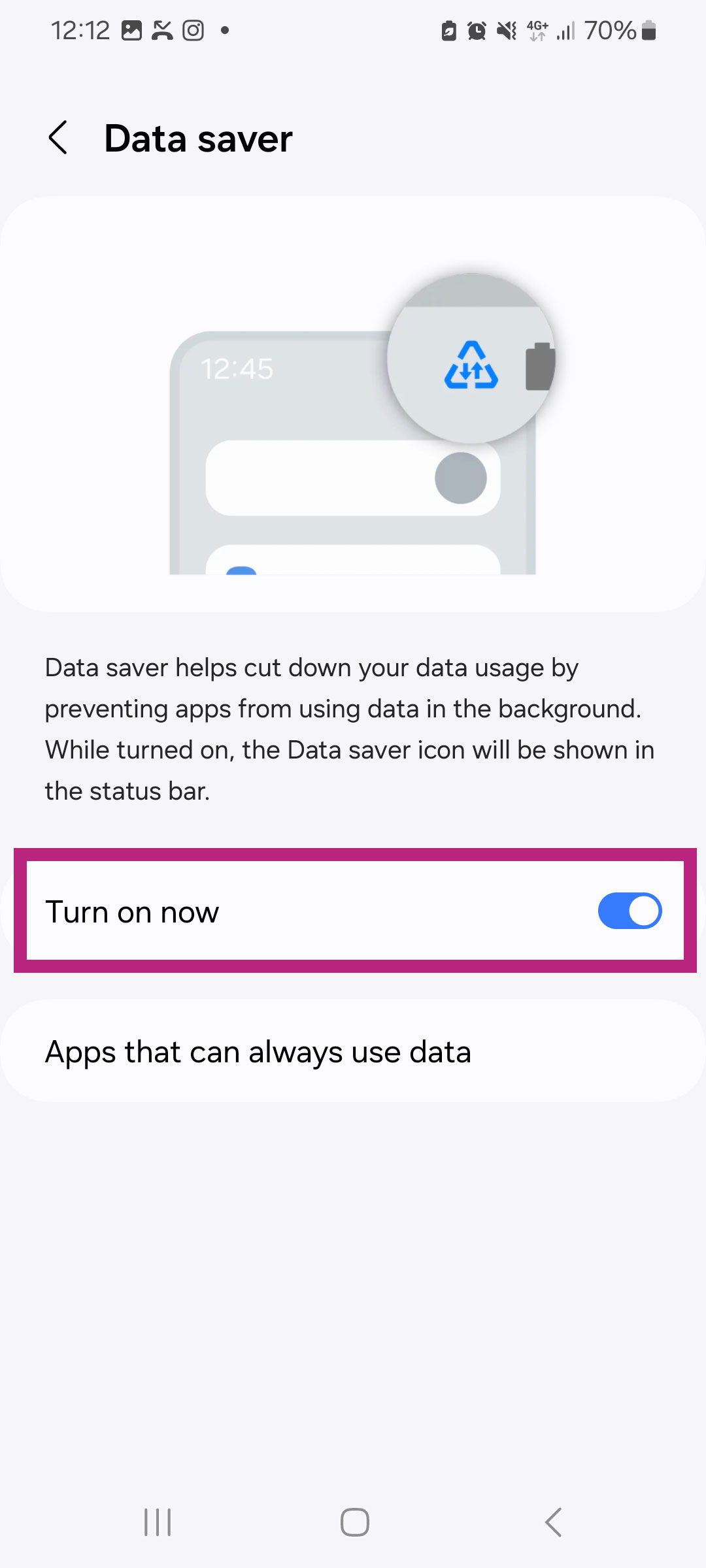
Data saver, Turn on now
On an unlimited plan this setting is what keeps you at full speed: the daily high speed allowance lasts longer when nothing runs in the background. The fair usage policy explains how the daily window works.
Six more ways to make your data last
Most of the data a phone uses abroad is spent by things nobody asked for.
-
Update your apps on Wi-Fi only
App stores download hundreds of megabytes without asking. Switch automatic updates to Wi-Fi in the store settings.
-
Stop apps working in the background
Background App Refresh on iPhone, background data on Android. Your apps then load when you open them, not all day long.
-
Lower the video quality
An hour of video can cost around 700 MB at normal quality, and much more in HD. Set your streaming apps to the lowest quality you can live with.
-
Turn off autoplay in social apps
Videos that start on their own while you scroll are the fastest way to empty a plan.
-
Download before you leave
Offline maps of your destination, music, podcasts and series: take them with you on Wi-Fi, at the hotel or at home.
-
Keep photo backups on Wi-Fi
Holiday photos and videos sync to the cloud in the background. That upload alone can be several gigabytes.
Not sure where you stand? Your eSIM list shows what is left on every eSIM you own: My eSIMs.
Already running low?
You can top up the eSIM you are using in a couple of taps, without changing anything on your phone.